

What you’ll build
- Attribute every session to a specific person, so you can get insights into how each user behaves across all their sessions
- An interactive Session Timeline that provides an overview of paths within a long running session, allowing you to investigate parts of a conversation without reading every turn
Pre-requisites
- An existing agent implementation (Python 3.10+ or Node.js 20+)
- Voker API key (get one here)
Implementation
- Python
- TypeScript
Step 1: Project setup
Install the Voker SDK for Python and add your API key..env file.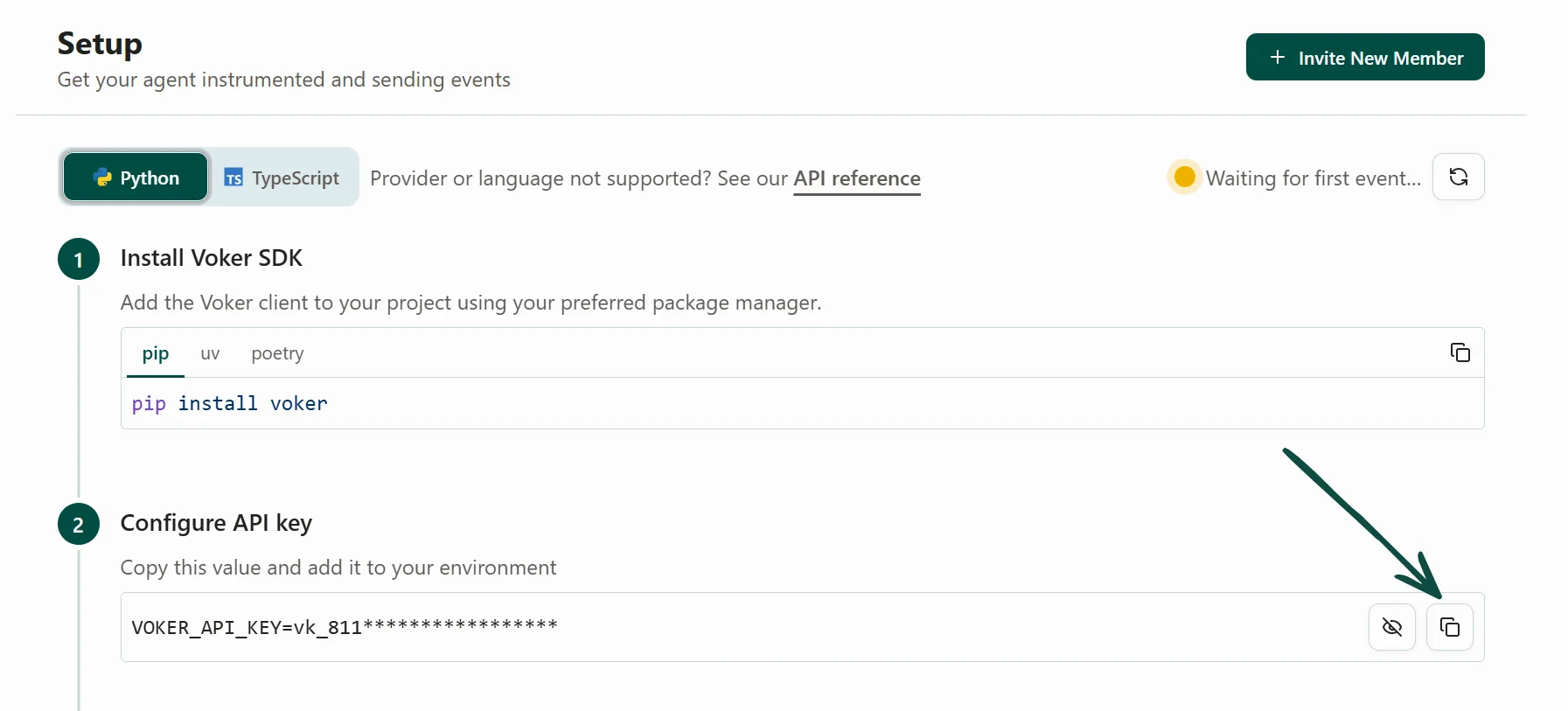
Navigate to the Voker dashboard to find your API key
Step 2: Set Voker parameters in LLM calls
In your project, swap the import for your LLM provider and add these parameters to your LLM calls:voker_session, groups events into the same sessionvoker_agent, identifies the agent making the eventvoker_agent_version, sets an initial agent versionvoker_person, attributes the event to a specific person.
When you provide a person ID on an event, Voker attaches the event to that person. If the person already exists, the event is added to them instead of creating a duplicate person.
- OpenAI
- Anthropic
- Gemini
Step 3: Make an LLM call and view in dashboard
Make an LLM call with the new parameters. Then go back to Voker, reload the page, and navigate to the People tab.Locate your person by typing their unique Person ID into the search bar, or find them in the list by their Person ID.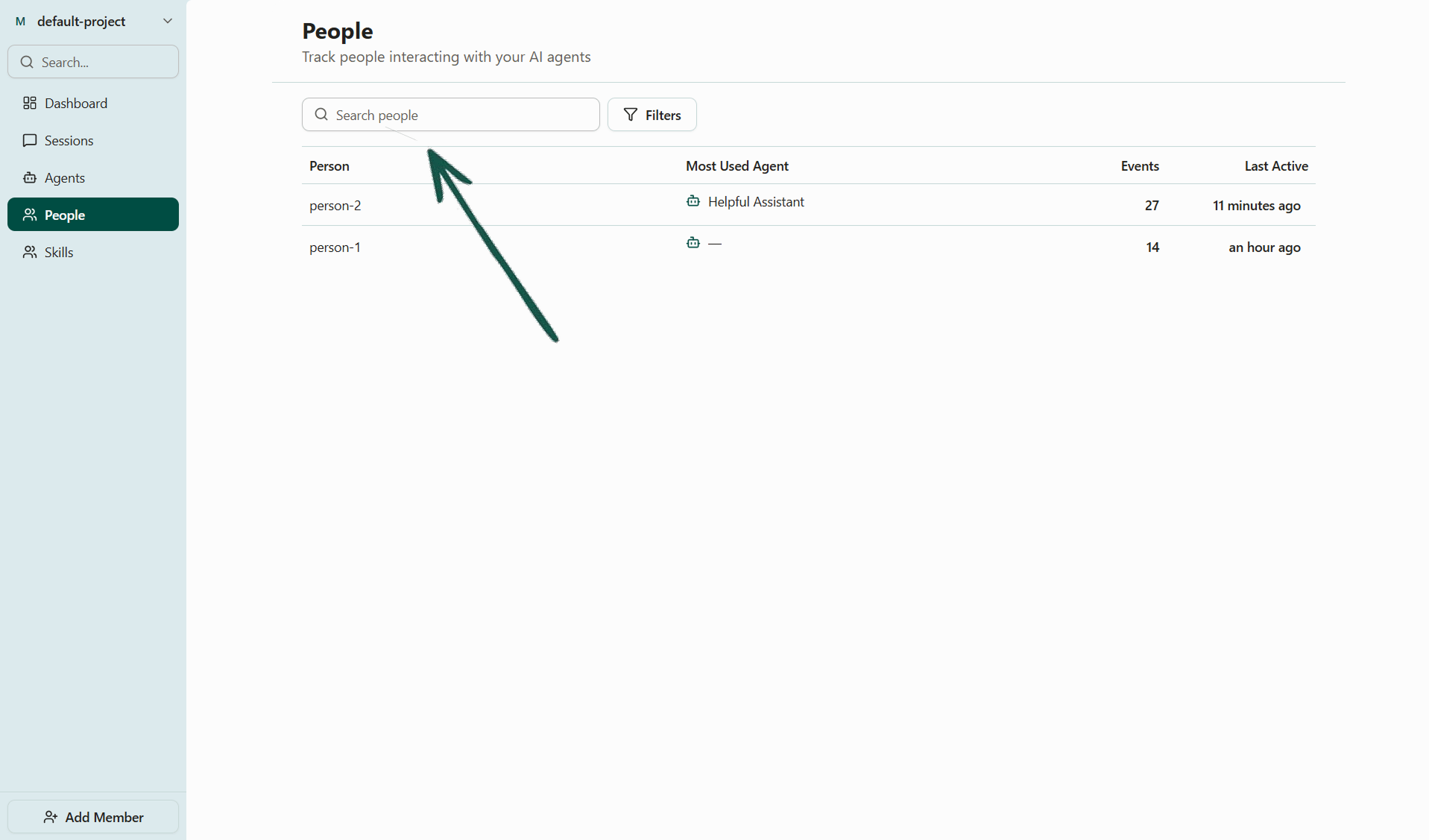
Navigate to 'People' in the sidebar
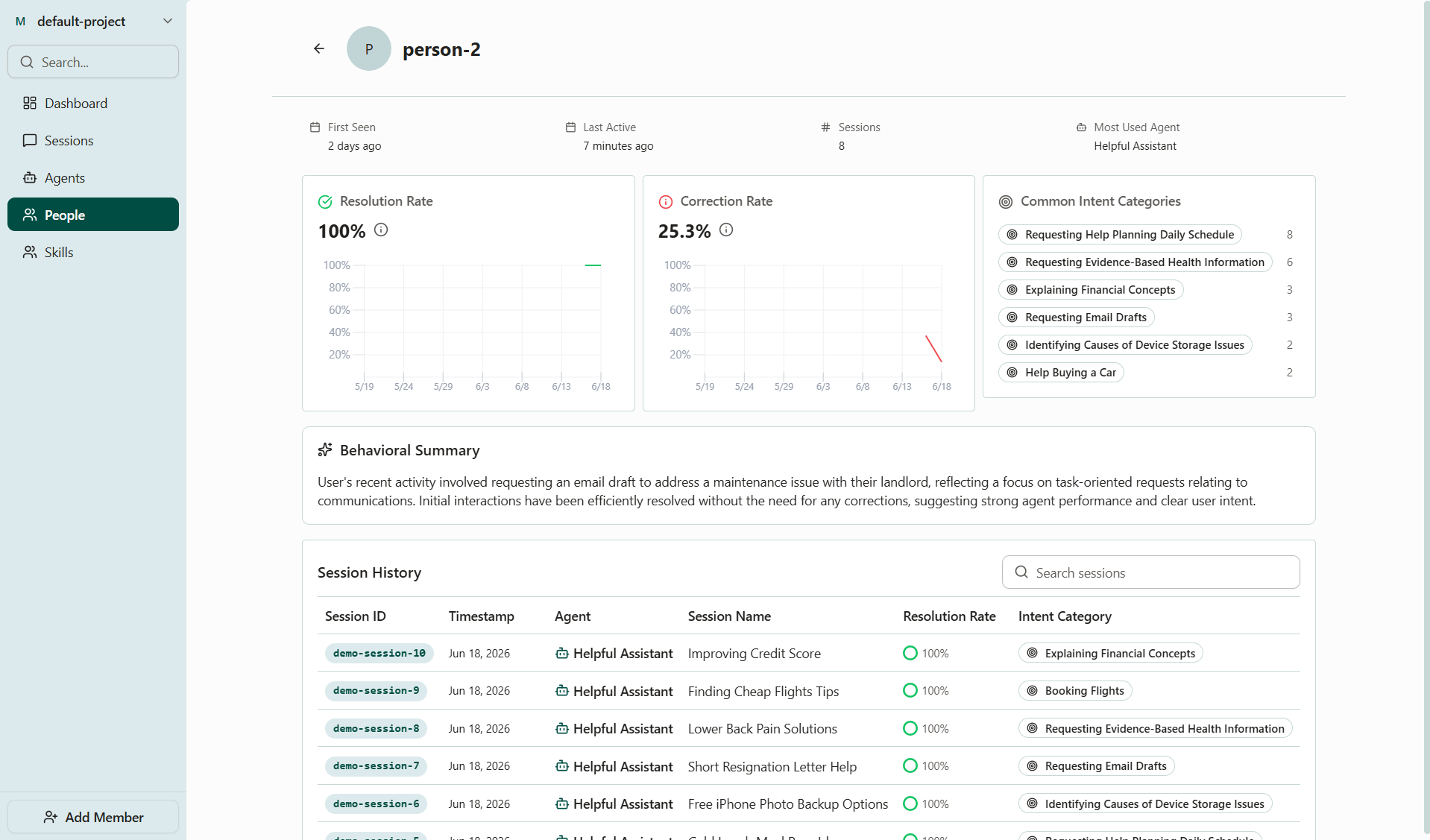
Click a person to open their details page and view their session history
What you’ll get
Voker gives you two views: a session path timeline splitting a long session into manageable paths, and what it tracks about a person across all of their sessions.Session path timeline
Open a session from the person’s session history to view its Session Timeline. The timeline breaks a long session into session paths, providing an overview how the agent traversed the conversation.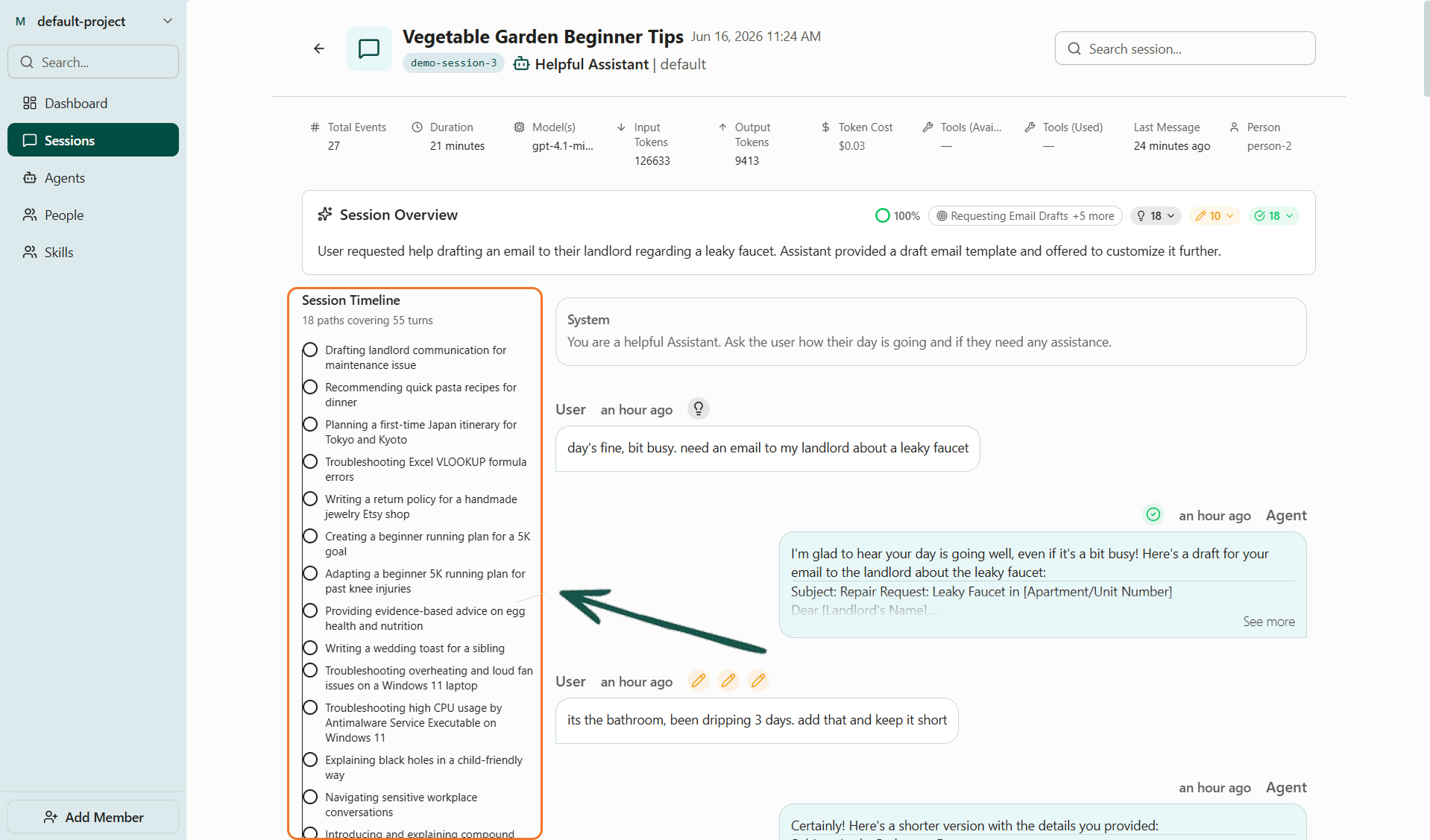
A session's detail page, with the Session Timeline called out
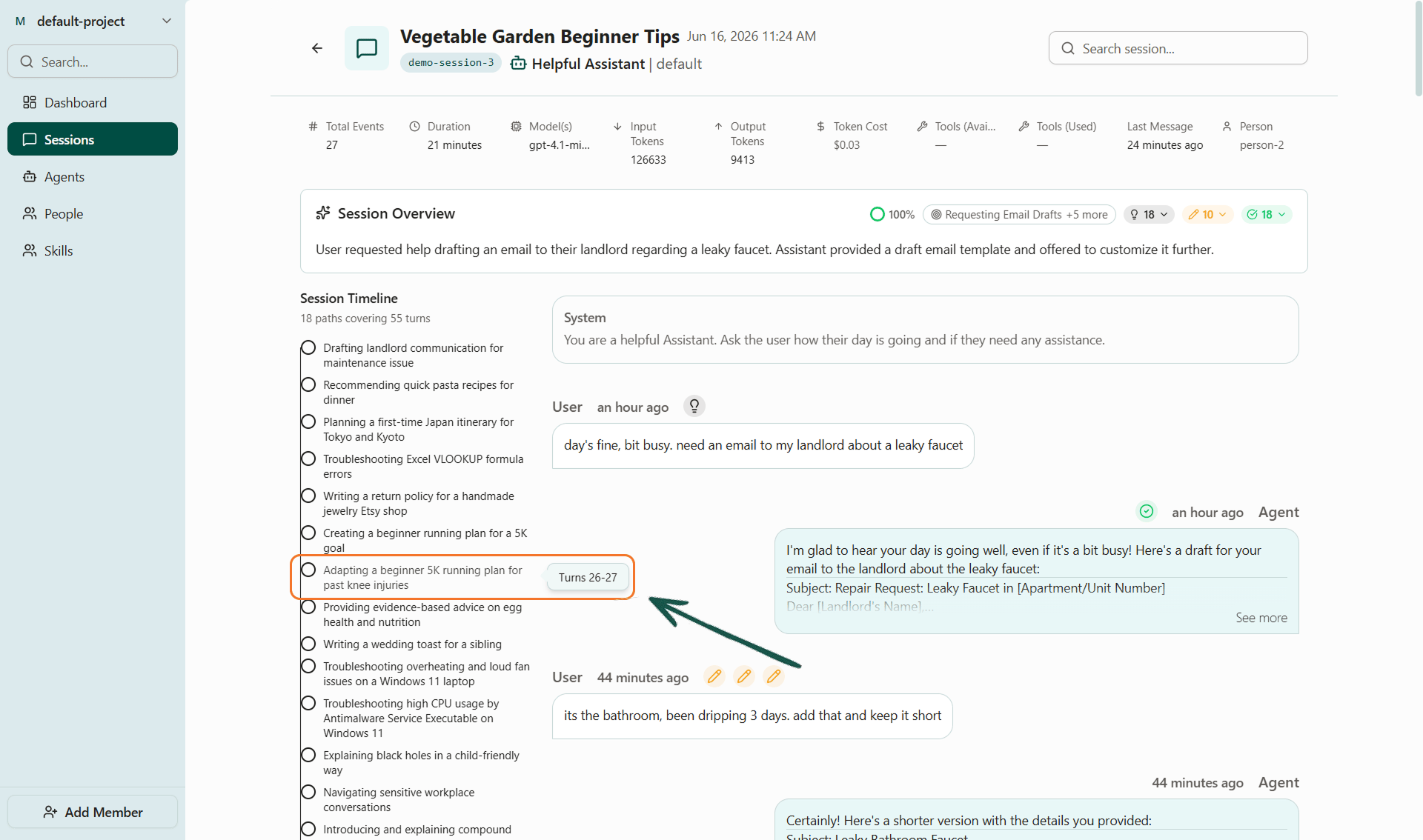
Hover over a session path to see how many turns it comprises
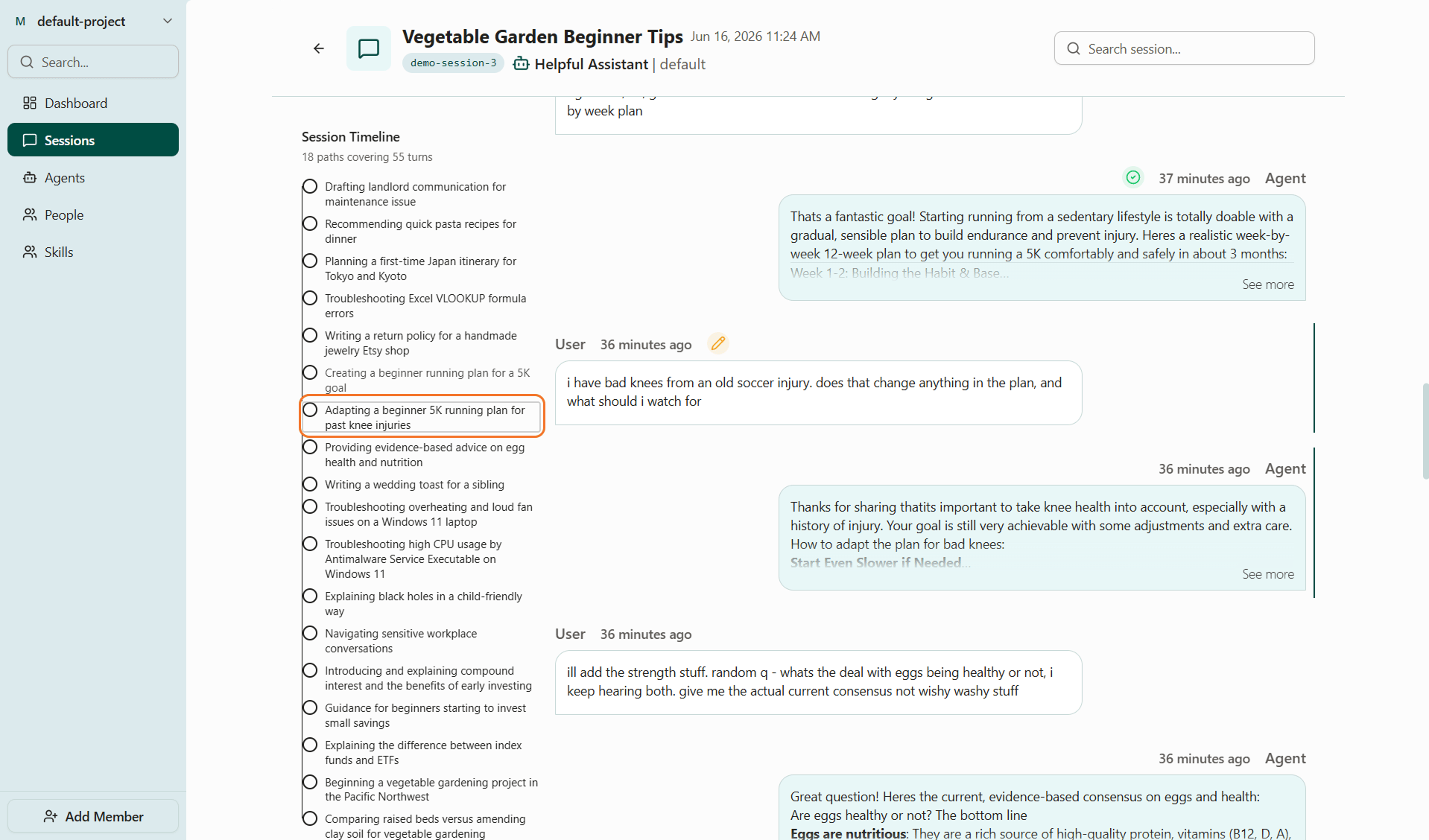
Click a session path to jump straight to that point in the conversation
What Voker tracks about a person
Open a person from the People tab to see their session history. Three of the things it tracks describe the person across their sessions: Most used agent: the agent this person uses most. Use this as the first place to look when they report a problem, since it’s their primary agent.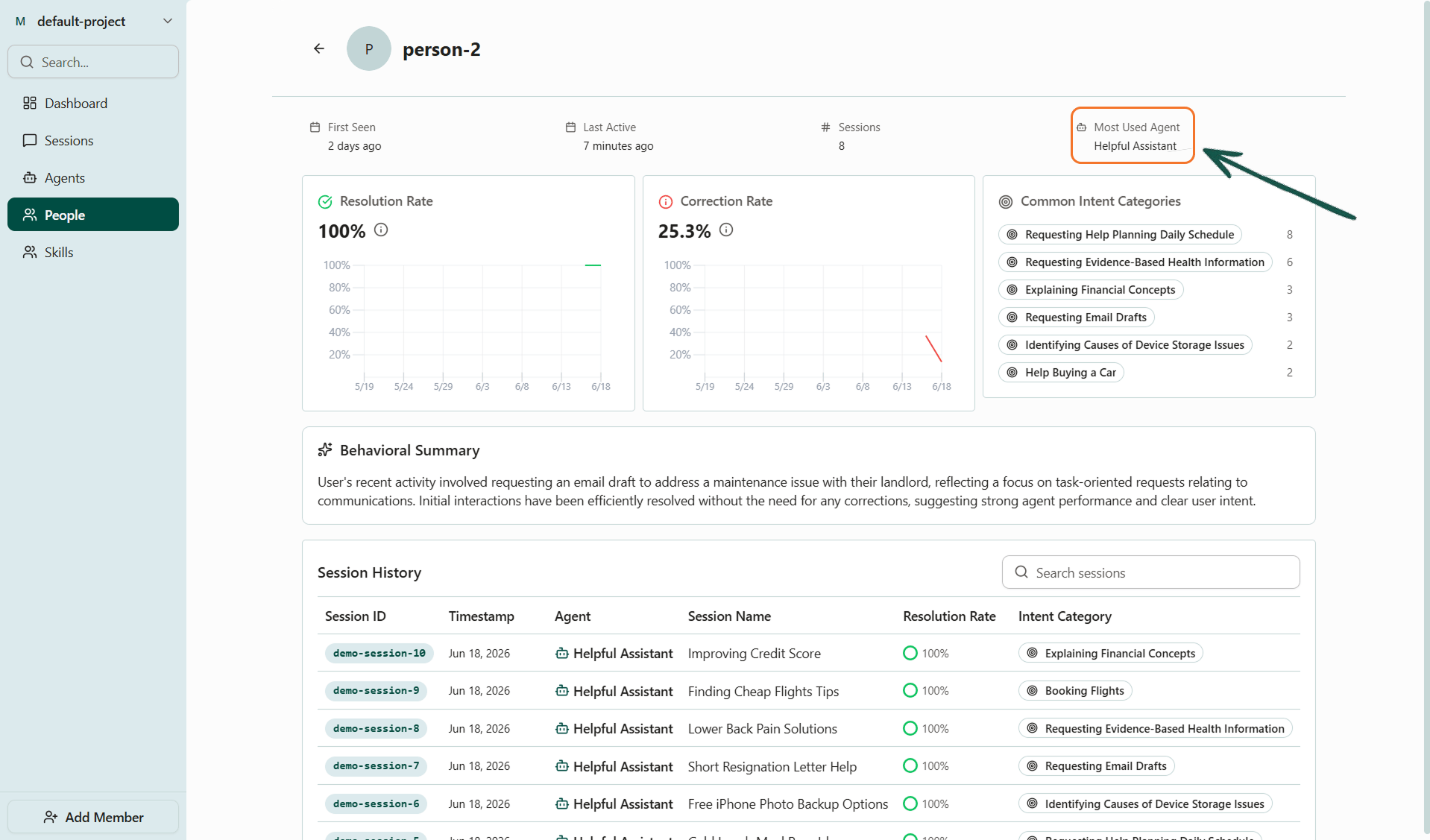
Most used agent on the person details page
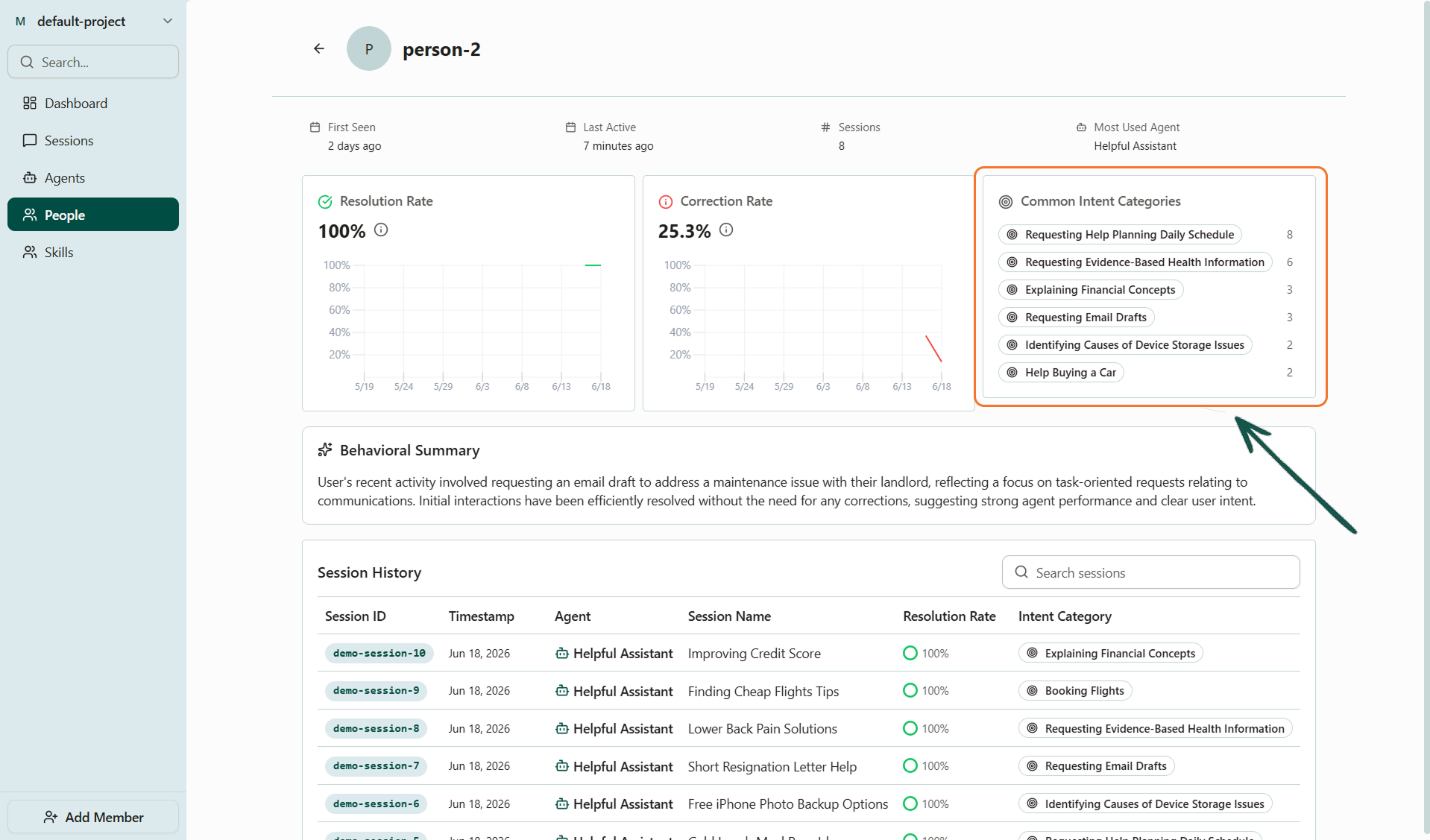
Common intent categories on the person details page
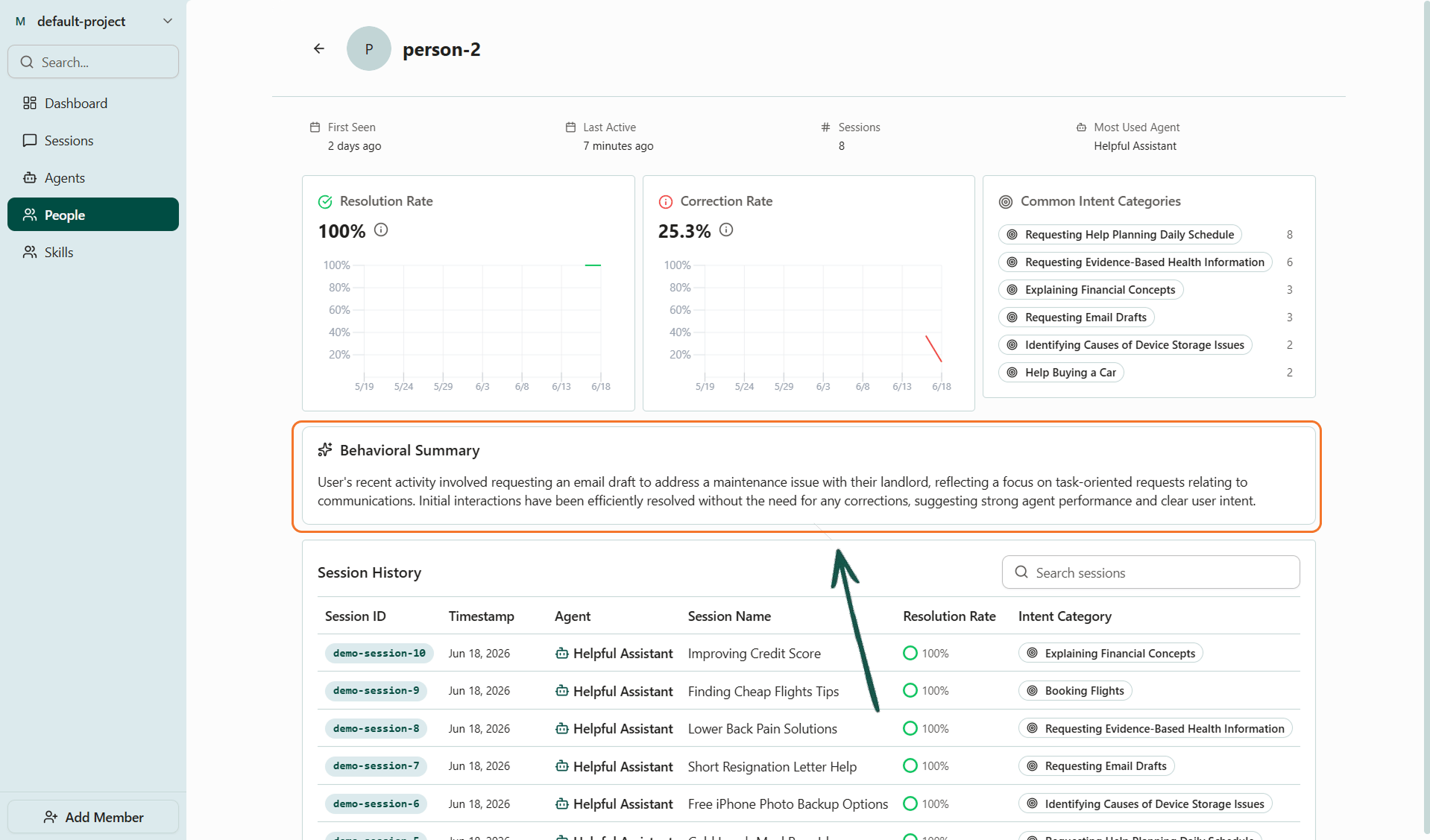
Behavioral summary on the person details page
The person details page also shows agent performance metrics like resolution rate and correction rate, which are covered more in depth in Agent Version Tracking.