Related concepts: Agent, Event Session A customer support agent is a common use case for AI agents, where the agent interacts with users to provide assistance and answer questions. In this cookbook, you’ll learn how to instrument one using Voker’s Python SDK, and how to use Voker’s dashboard to trace user sessions, view metrics and identify areas for improvement.

What you’ll build

  • A customer support chat agent in Python with Voker’s analytics to trace users’ sessions
  • View metrics, a conversation summary and an interactive session timeline for every user session in Voker’s dashboard
Jump to results

Pre-requisites

  • Python 3.10+
  • Voker API key (get one here)
  • OpenAI API key (get one here)

Step 1: Project setup

mkdir customer-support-agent && cd customer-support-agent
python -m venv venv
source venv/bin/activate  # On Windows: venv\Scripts\activate
pip install openai python-dotenv voker
Create a .env file in your project root with the following content:
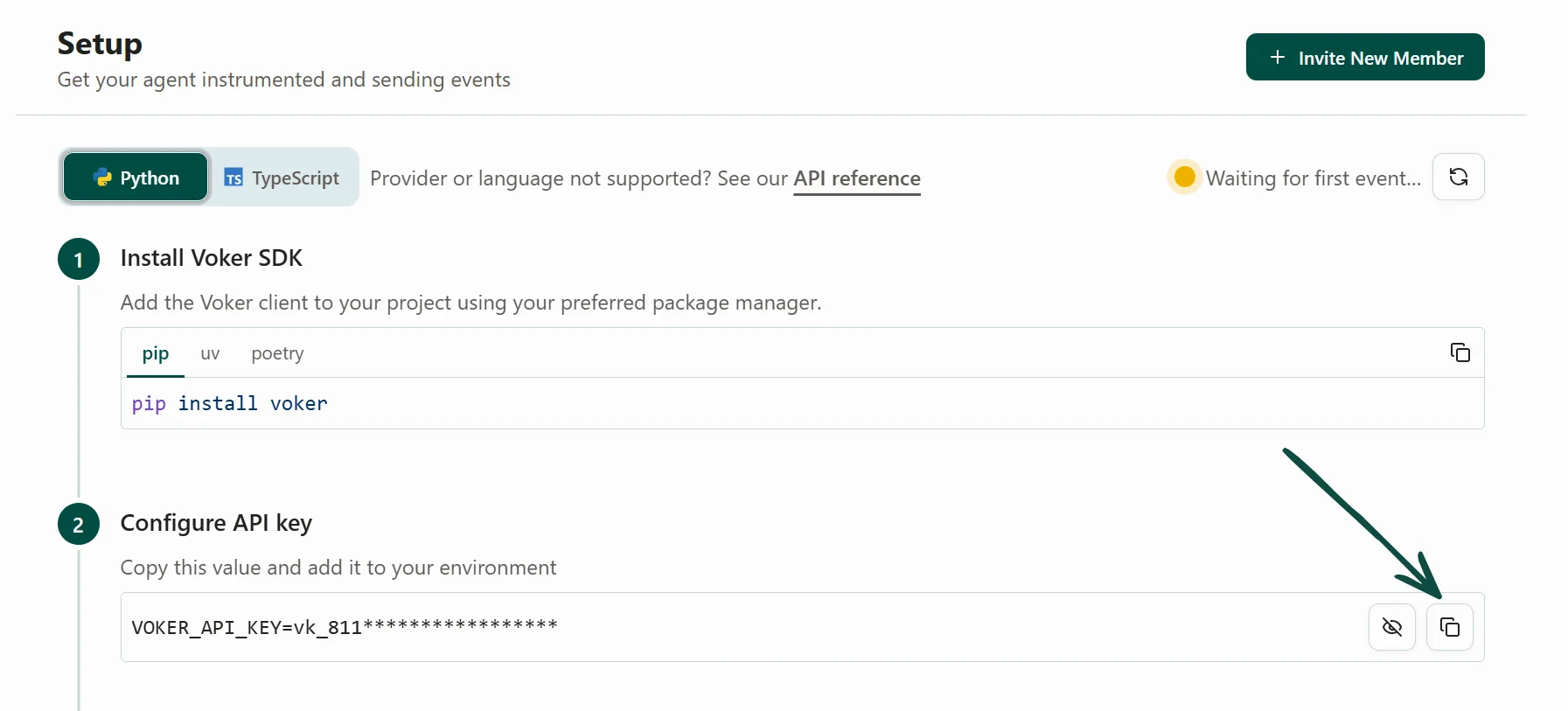
VOKER_API_KEY=your_voker_api_key
OPENAI_API_KEY=your_openai_api_key
To obtain your Voker API key, sign up for a free Voker account here. You will be taken to the setup page where you can copy the value.
Screenshot of the Voker API key setup page

Step 2: Build the agent using Voker’s Python SDK

Create main.py and paste the following content.
Voker wraps the OpenAI Python SDK with no additional latency.You’re using the same parameters you’re used to, with the addition of voker_agent and voker_session to group data in Voker.
from voker.ai.provider_openai import OpenAI         
from dotenv import load_dotenv

load_dotenv()

client = OpenAI()

SYSTEM_PROMPT = "You are a helpful customer support agent. Ask the user how their day is going and if they need any assistance."

def run_customer_support_agent(messages: list[dict[str, str]], user_message: str) -> str:
    def chat(messages):
        return client.chat.completions.create(   
            voker_agent="customer-support-agent",            
            voker_session='demo-session-1',               
            model="gpt-4.1-mini",
            messages=messages,
        )

    messages.append({"role": "user", "content": user_message})

    response = chat(messages)

    assistant_message = response.choices[0].message.content or ""
    messages.append({"role": "assistant", "content": assistant_message})

    return assistant_message


if __name__ == "__main__":
    messages = [{"role": "system", "content": SYSTEM_PROMPT}]

    while True:
        user_input = input("\nEnter your message to the support agent: ")

        if user_input.lower() in {"exit"}:
            break

        response = run_customer_support_agent(messages, user_input)

        print(f"\nAssistant: {response}")

Step 3: Run the agent in your terminal

python main.py
You can chat with the agent in your terminal. Try asking it for some help and see how it responds.

Step 4: View sessions in Voker

After a brief chat with your agent, head back to Voker and navigate to the ‘Sessions’ page. You will see an entry for the conversation you just had with your agent, click into it.
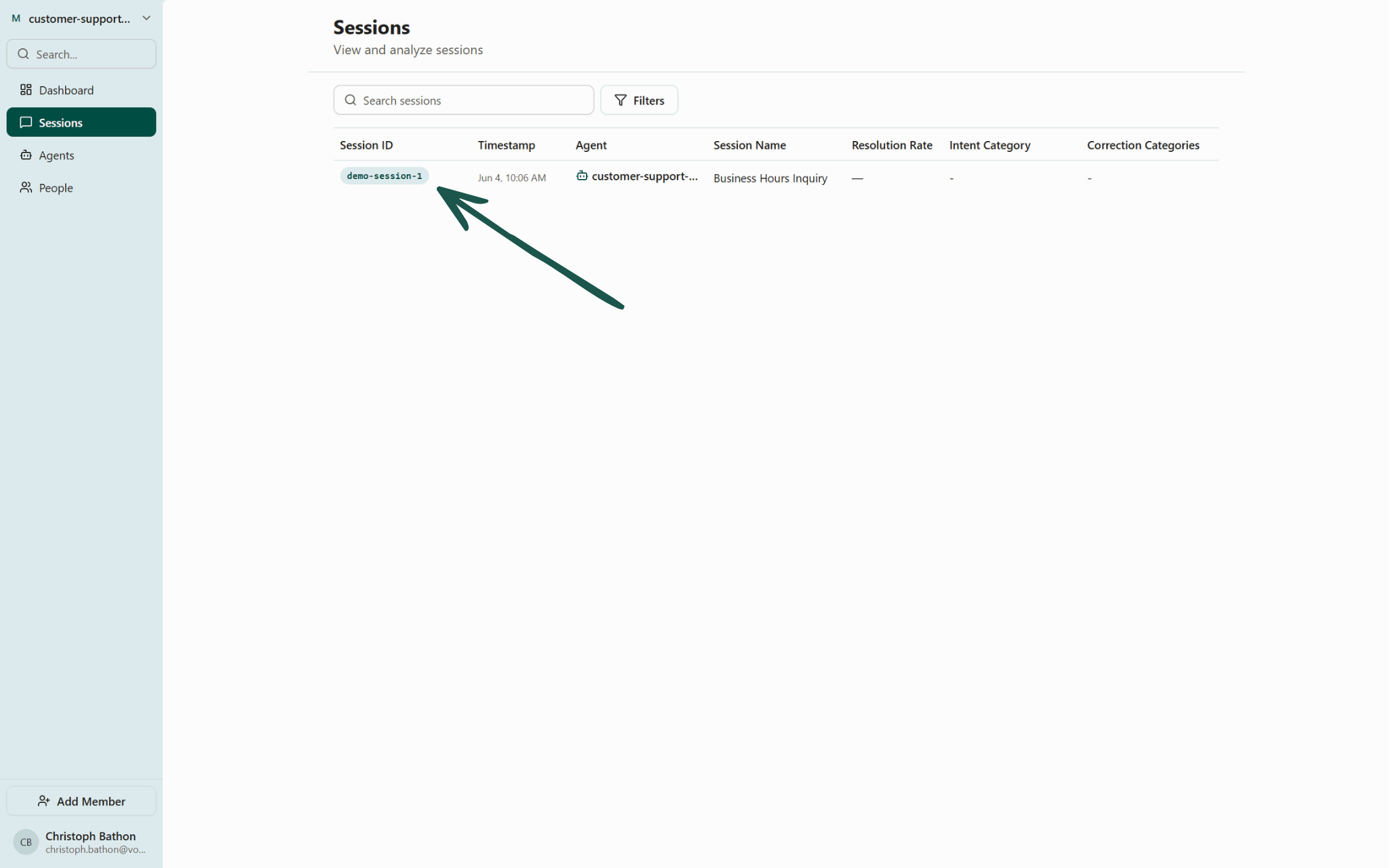
Voker Sessions Page

What you’ll get

Insights into every session between your agent and users.
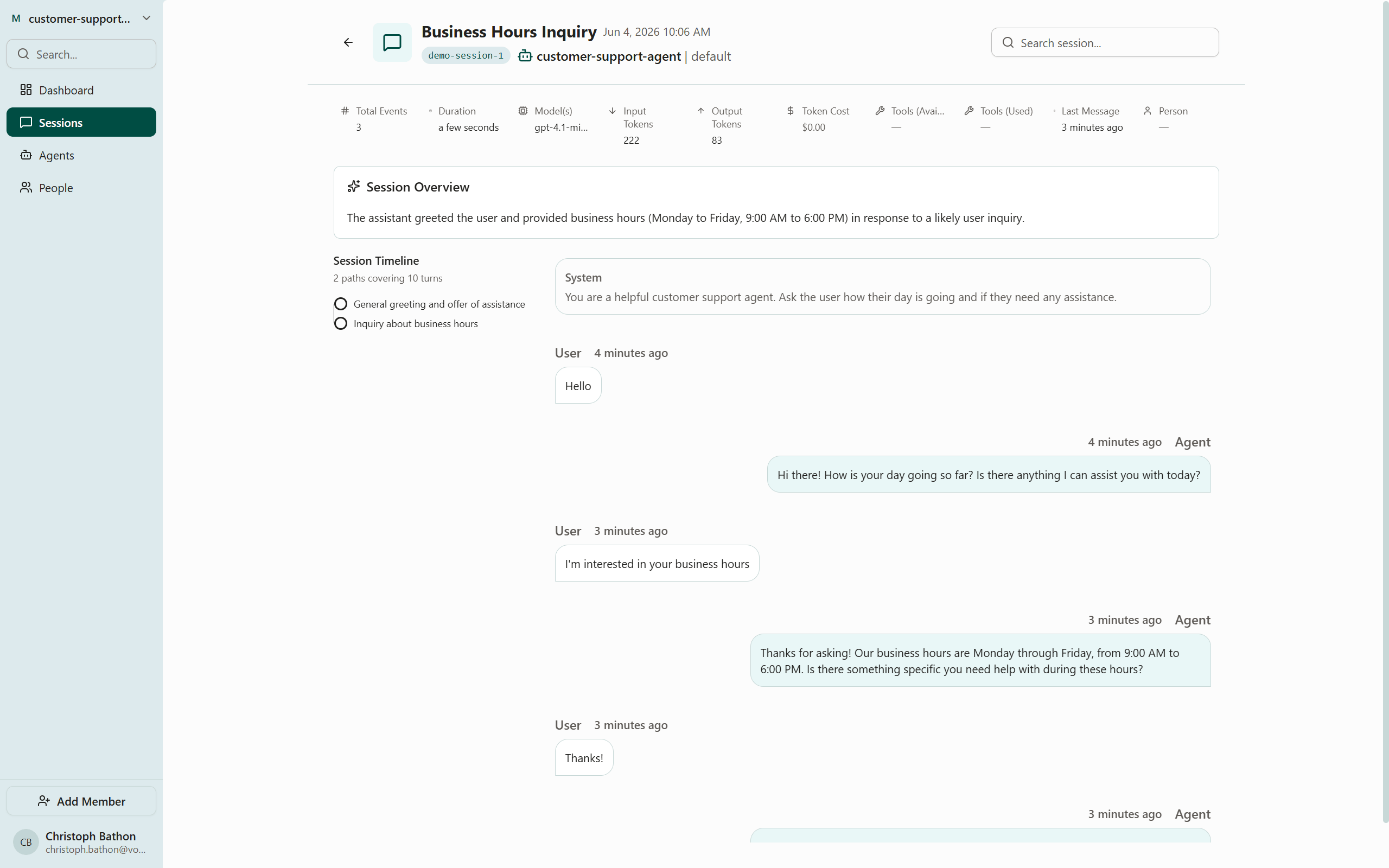
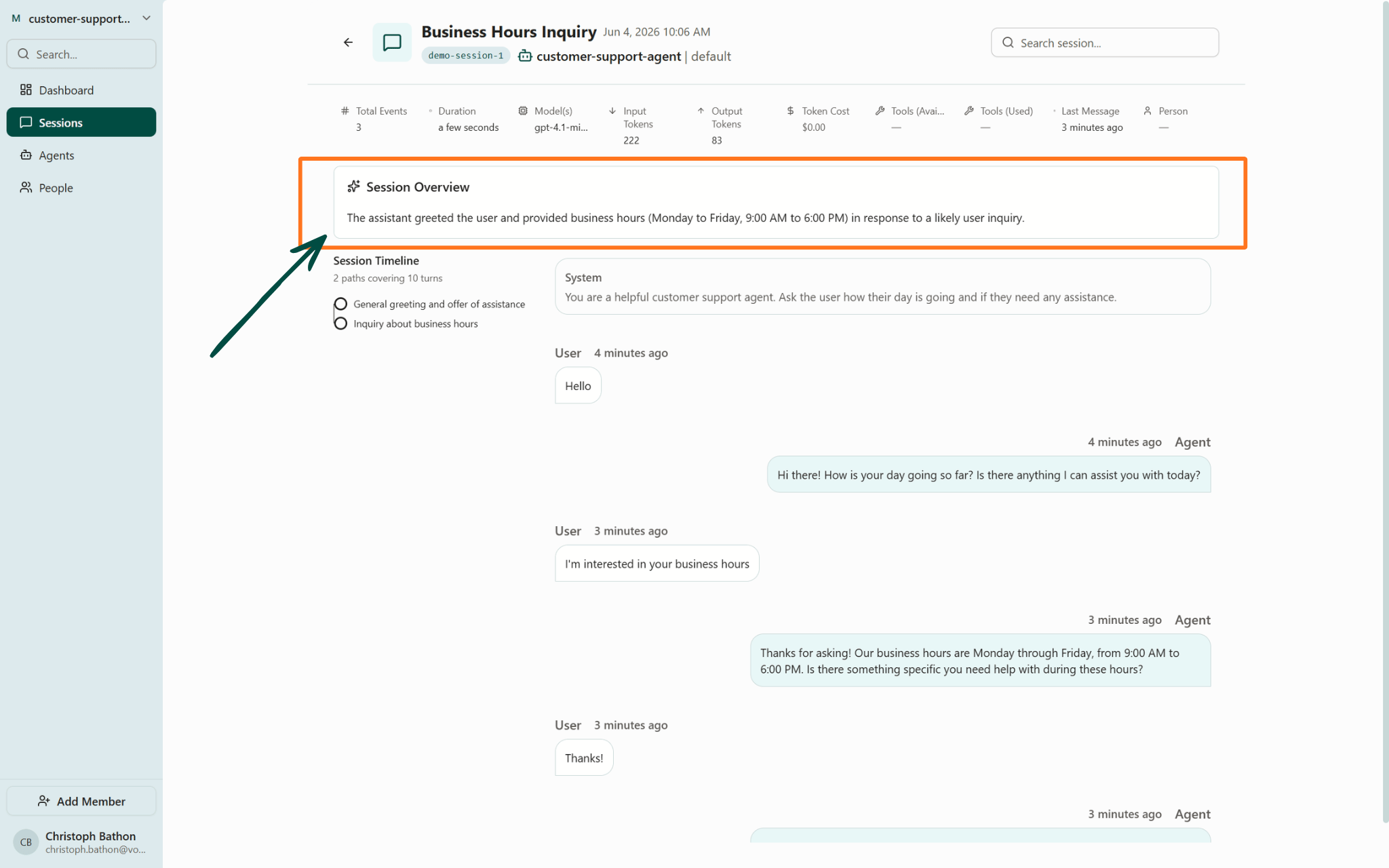
Voker Sessions Detail Page - Overview
Here is a breakdown of this page:
  • A dashboard to view metrics such as model used, token count and available tools
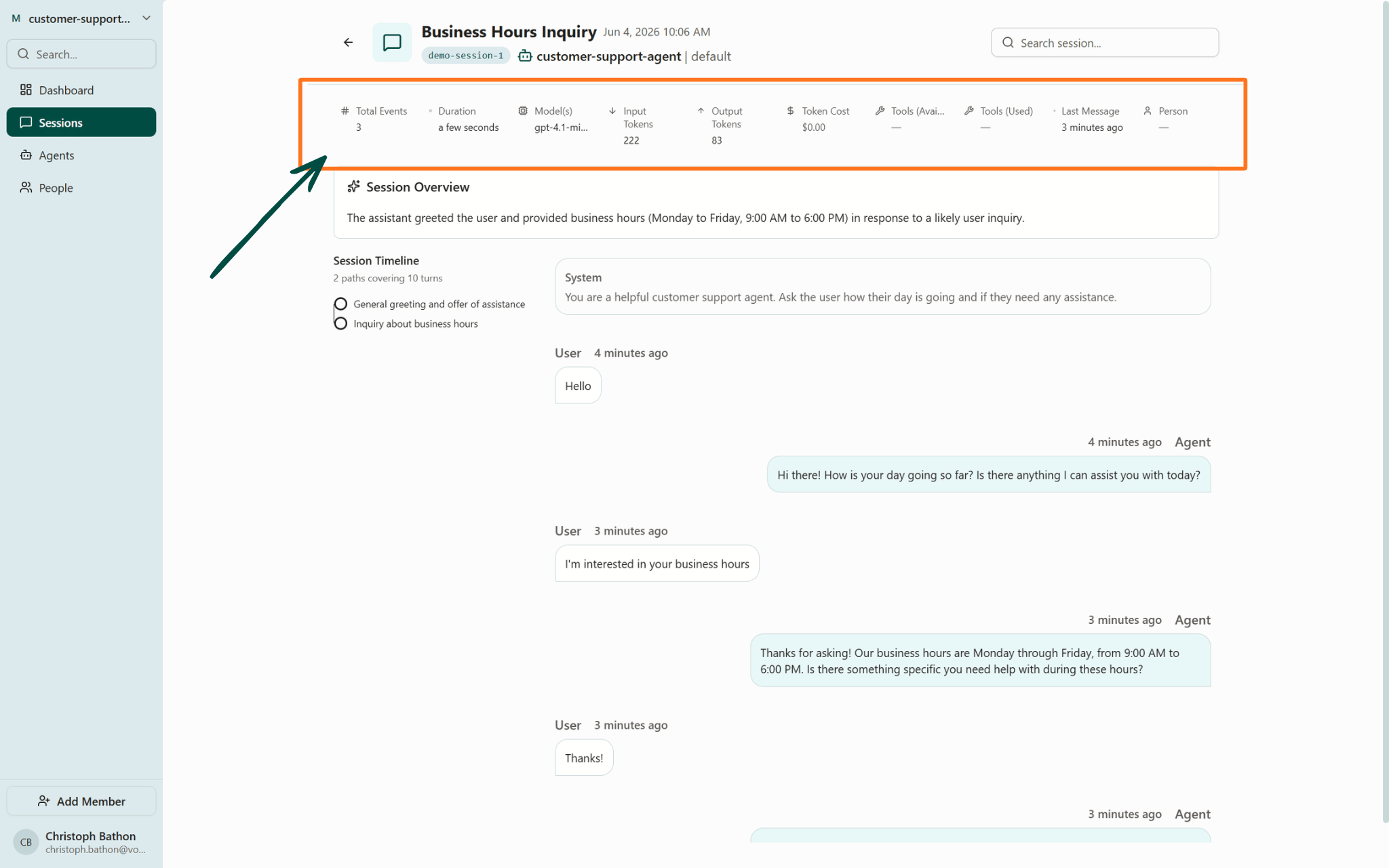
Voker Sessions Detail Page - Metrics Dashboard
  • A high-level summary of the session
Voker Sessions Detail Page - AI Generated Summary
  • An interactive Session Timeline mapping the conversation into a readable format
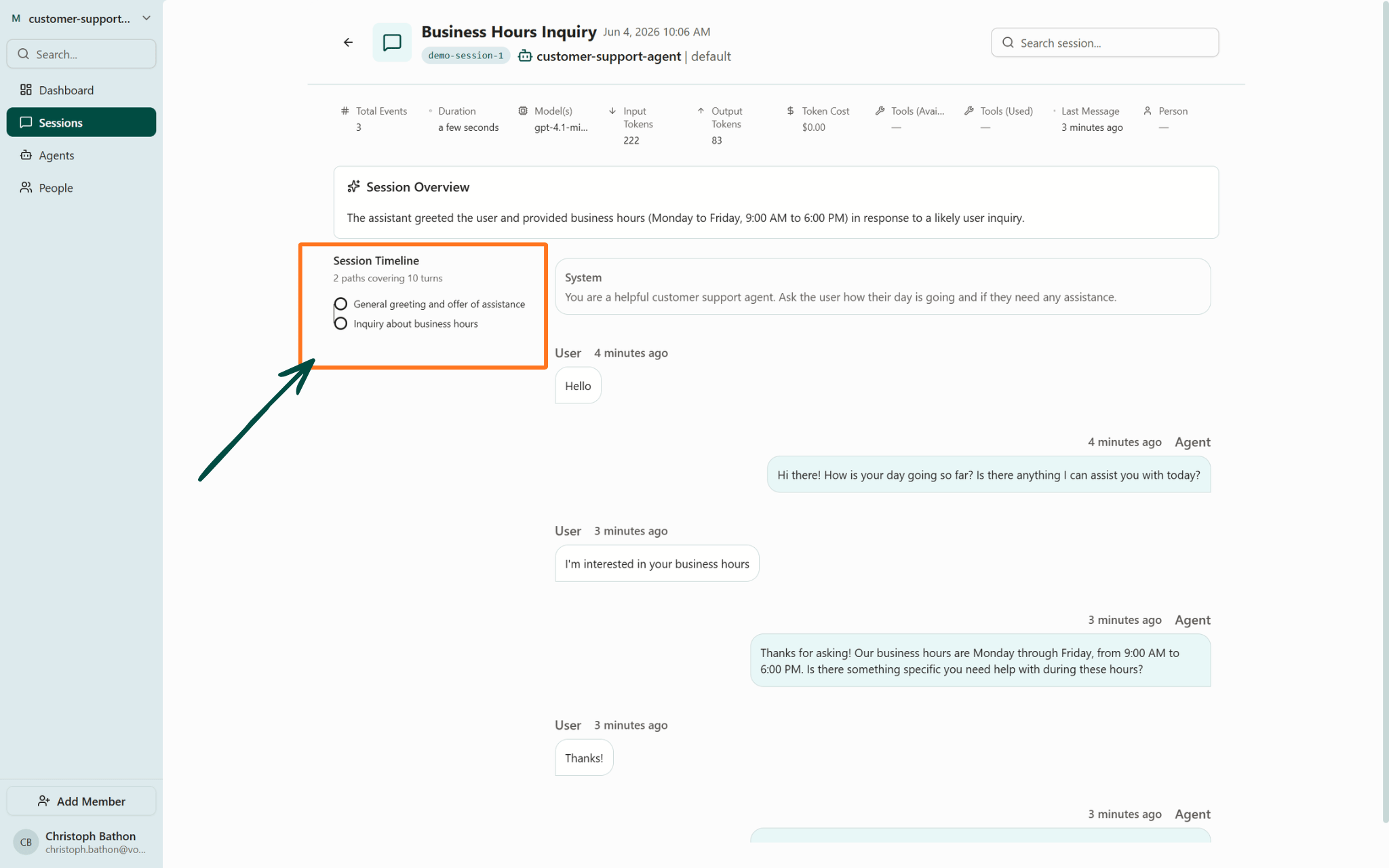
Voker Sessions Detail Page - Interactive Session Timeline
  • The conversation history containing all events
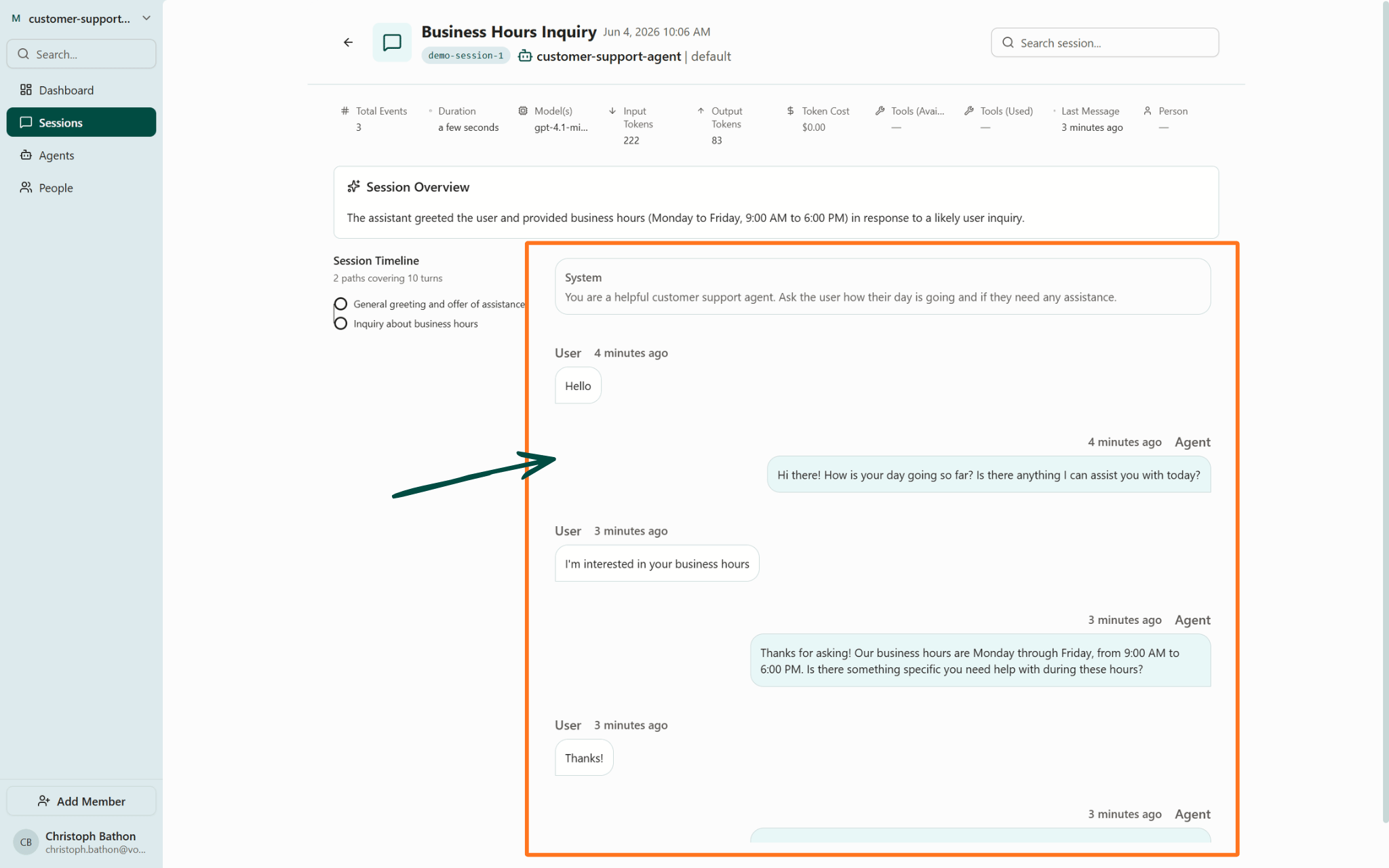
Voker Sessions Detail Page - Conversation History

Next steps

You’ve set up Voker analytics! Visit our Agent Version Tracking cookbook to see how you can identify discrepancies in your agent’s performance.