> ## Documentation Index
> Fetch the complete documentation index at: https://docs.voker.ai/llms.txt
> Use this file to discover all available pages before exploring further.
# Tracking Long Running Agent Conversations
Related concepts: [People](/concepts/people), [Sessions](/concepts/events#event-sessions)
If you have long running agents in production, i.e. an agent that handles many conversation turns with a single user, you've probably experienced issues keeping track of quality, simply because there are so many messages to follow.
This cookbook walks you through tracking long running agents in Voker, so you can get the insights you need to optimize your agent without reading through every message.
## What you'll build
* Attribute every session to a specific [person](/concepts/people#creating-a-person), so you can get insights into how each user behaves across all their sessions
* An interactive Session Timeline that provides an overview of paths within a long running session, allowing you to investigate parts of a conversation without reading every turn
[Jump to results](#what-you’ll-get)
## Pre-requisites
* An existing agent implementation (Python 3.10+ or Node.js 20+)
* Voker API key (get one [here](https://app.voker.ai/signup))
## Implementation
### Step 1: Project setup
Install the Voker SDK for Python and add your API key.
```bash pip theme={null}
pip install voker
```
```bash uv theme={null}
uv add voker
```
```bash poetry theme={null}
poetry add voker
```
Add your Voker API key to your `.env` file.
```bash theme={null}
VOKER_API_KEY=your_voker_api_key_here
```
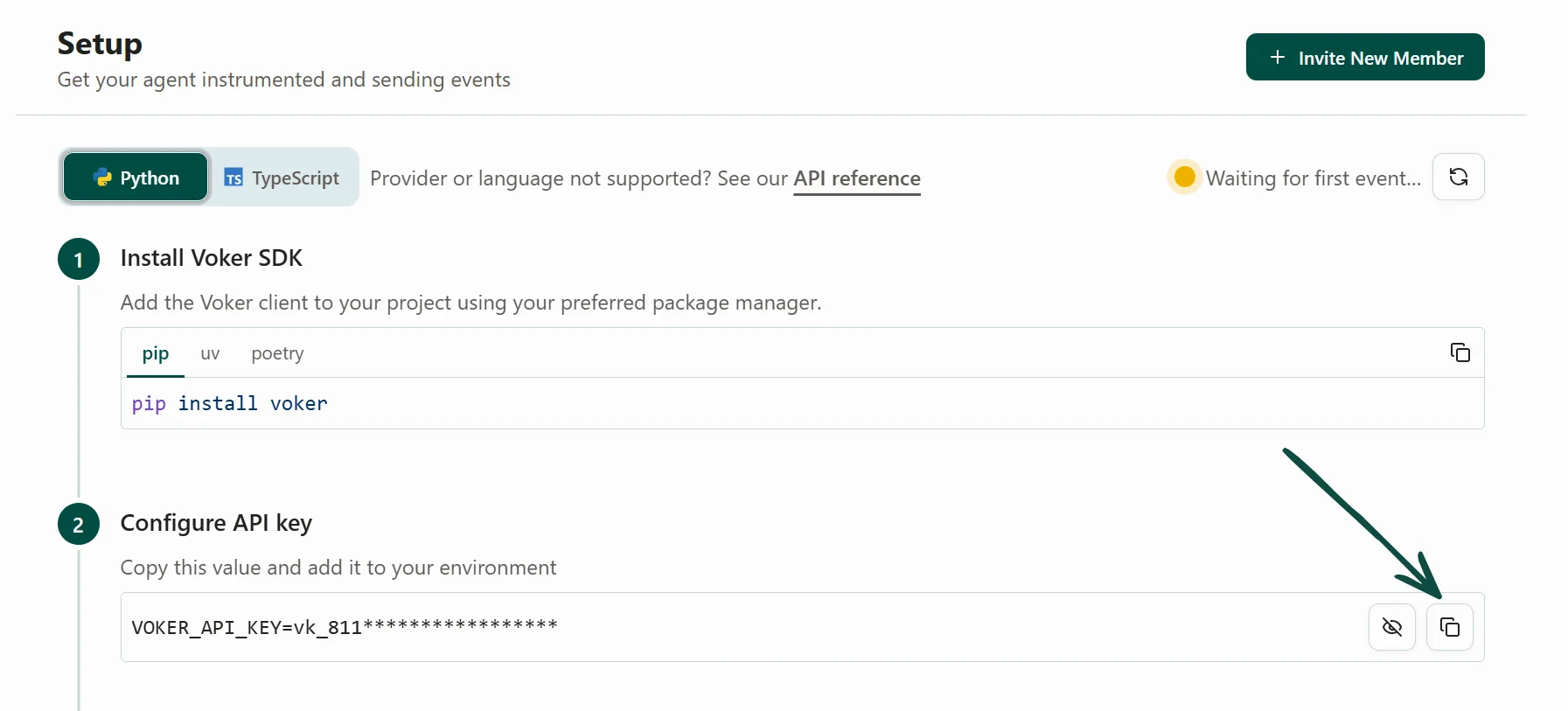
To obtain your Voker API key, sign up for a free Voker account [here](https://app.voker.ai/sign-up). You will be taken to the setup page where you can copy the value.
 ### Step 2: Set Voker parameters in LLM calls
In your project, swap the import for your LLM provider and add these parameters to your LLM calls:
* `voker_session`, groups events into the same [session](/concepts/events#event-sessions)
* `voker_agent`, identifies the [agent](/concepts/agents#agents) making the event
* `voker_agent_version`, sets an initial [agent version](/concepts/agents#agent-versions)
* `voker_person`, attributes the event to a specific [person](/concepts/people).
When you provide a person ID on an event, Voker attaches the event to that person. If the person already exists, the event is added to them instead of creating a duplicate person.
```python theme={null}
from openai import OpenAI # [!code --]
from voker.ai.provider_openai import OpenAI # [!code ++]
client = OpenAI()
client.chat.completions.create(
voker_session="test-session-1", # [!code ++]
voker_agent="my-agent", # [!code ++]
voker_agent_version="v1.0", # [!code ++]
voker_person="person-1", # [!code ++]
model="gpt-4.1-mini",
messages=[
{
"role": "system",
"content": "... your current system prompt here ...",
}
],
)
```
```python theme={null}
from anthropic import Anthropic # [!code --]
from voker.ai.provider_anthropic import Anthropic # [!code ++]
client = Anthropic()
client.messages.create(
voker_session="test-session-1", # [!code ++]
voker_agent="my-agent", # [!code ++]
voker_agent_version="v1.0", # [!code ++]
voker_person="person-1", # [!code ++]
model="claude-haiku-4-5",
messages=[
{
"role": "user",
"content": "... your current system prompt here ...",
}
],
max_tokens=1024,
)
```
```python theme={null}
from google.genai import Client # [!code --]
from voker.ai.provider_gemini import Client # [!code ++]
client = Client()
client.models.generate_content(
voker_session="test-session-1", # [!code ++]
voker_agent="my-agent", # [!code ++]
voker_agent_version="v1.0", # [!code ++]
voker_person="person-1", # [!code ++]
model="gemini-2.5-flash",
contents="... your current system prompt ...",
)
```
### Step 3: Make an LLM call and view in dashboard
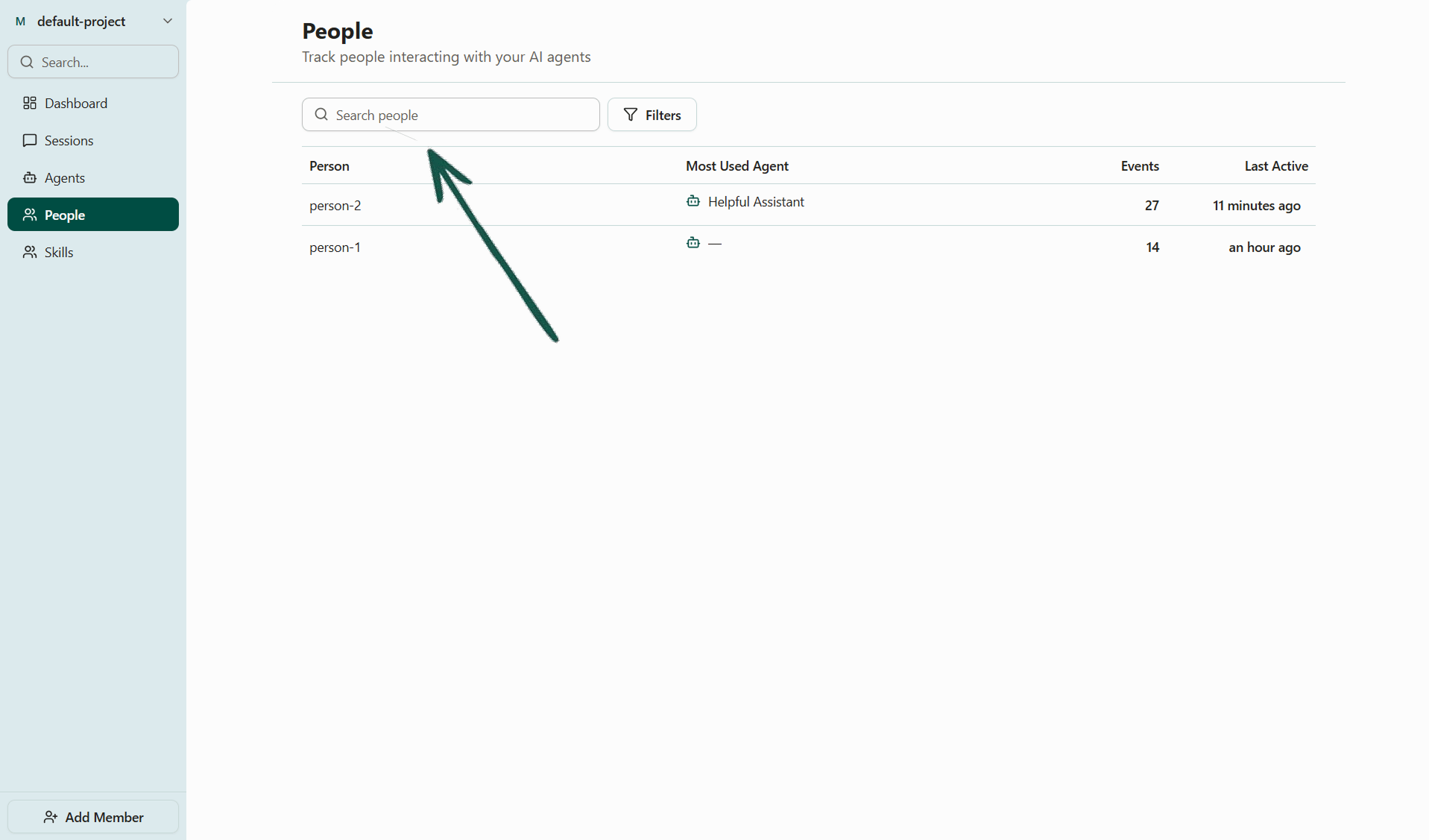
Make an LLM call with the new parameters. Then go back to [Voker](https://app.voker.ai), reload the page, and navigate to the People tab.
Locate your person by typing their unique Person ID into the search bar, or find them in the list by their Person ID.
### Step 2: Set Voker parameters in LLM calls
In your project, swap the import for your LLM provider and add these parameters to your LLM calls:
* `voker_session`, groups events into the same [session](/concepts/events#event-sessions)
* `voker_agent`, identifies the [agent](/concepts/agents#agents) making the event
* `voker_agent_version`, sets an initial [agent version](/concepts/agents#agent-versions)
* `voker_person`, attributes the event to a specific [person](/concepts/people).
When you provide a person ID on an event, Voker attaches the event to that person. If the person already exists, the event is added to them instead of creating a duplicate person.
```python theme={null}
from openai import OpenAI # [!code --]
from voker.ai.provider_openai import OpenAI # [!code ++]
client = OpenAI()
client.chat.completions.create(
voker_session="test-session-1", # [!code ++]
voker_agent="my-agent", # [!code ++]
voker_agent_version="v1.0", # [!code ++]
voker_person="person-1", # [!code ++]
model="gpt-4.1-mini",
messages=[
{
"role": "system",
"content": "... your current system prompt here ...",
}
],
)
```
```python theme={null}
from anthropic import Anthropic # [!code --]
from voker.ai.provider_anthropic import Anthropic # [!code ++]
client = Anthropic()
client.messages.create(
voker_session="test-session-1", # [!code ++]
voker_agent="my-agent", # [!code ++]
voker_agent_version="v1.0", # [!code ++]
voker_person="person-1", # [!code ++]
model="claude-haiku-4-5",
messages=[
{
"role": "user",
"content": "... your current system prompt here ...",
}
],
max_tokens=1024,
)
```
```python theme={null}
from google.genai import Client # [!code --]
from voker.ai.provider_gemini import Client # [!code ++]
client = Client()
client.models.generate_content(
voker_session="test-session-1", # [!code ++]
voker_agent="my-agent", # [!code ++]
voker_agent_version="v1.0", # [!code ++]
voker_person="person-1", # [!code ++]
model="gemini-2.5-flash",
contents="... your current system prompt ...",
)
```
### Step 3: Make an LLM call and view in dashboard
Make an LLM call with the new parameters. Then go back to [Voker](https://app.voker.ai), reload the page, and navigate to the People tab.
Locate your person by typing their unique Person ID into the search bar, or find them in the list by their Person ID.
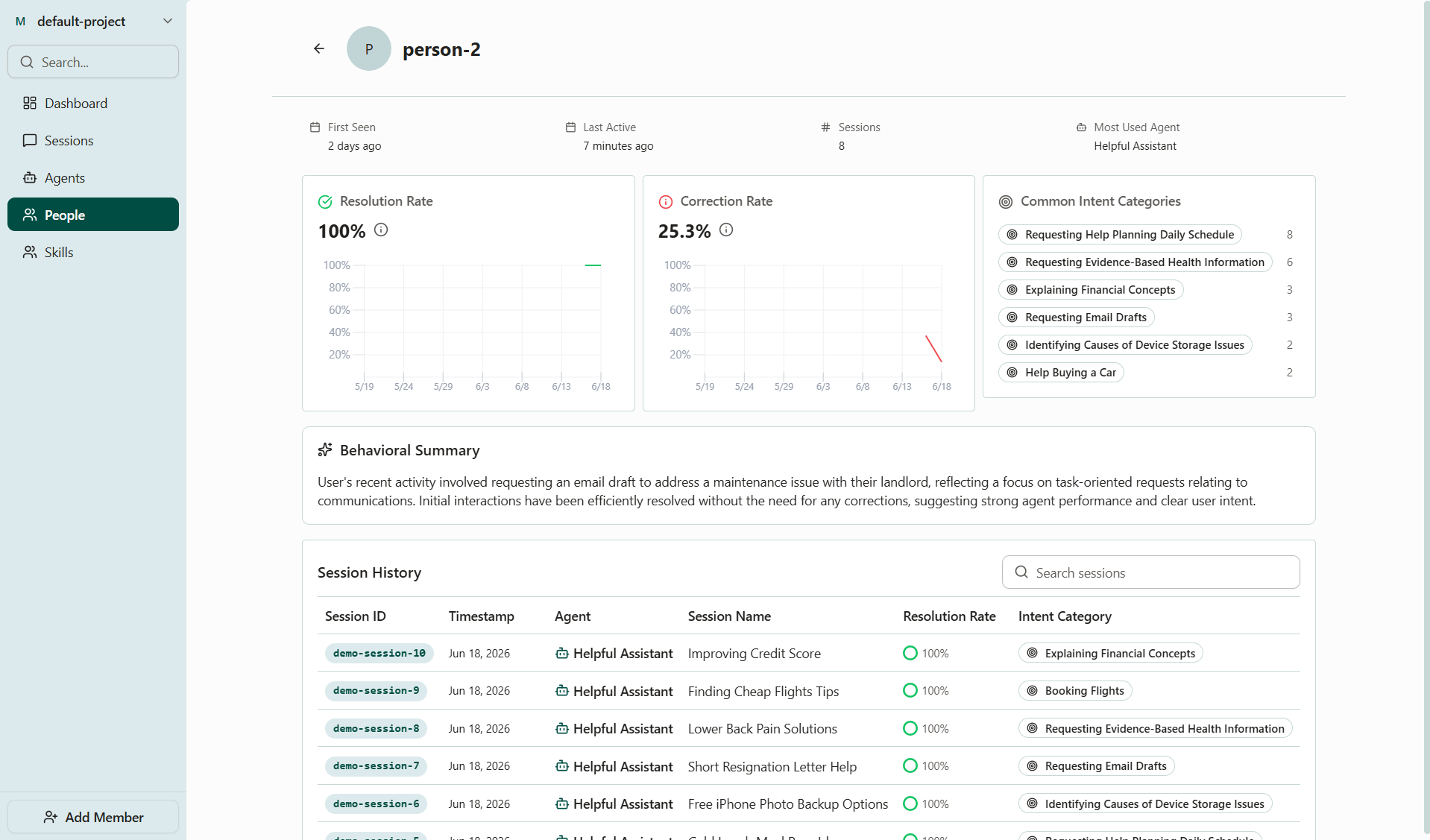
 Click on the person to view their details page, where you can see their session history along with aggregate data across those sessions.
 ### Step 1: Project setup
Install the Voker SDK for TypeScript and add your API key.
```bash npm theme={null}
npm install @voker/voker
```
```bash pnpm theme={null}
pnpm add @voker/voker
```
```bash bun theme={null}
bun add @voker/voker
```
```bash yarn theme={null}
yarn add @voker/voker
```
Add your Voker API key to your `.env` file.
```bash theme={null}
VOKER_API_KEY=your_voker_api_key_here
```
To obtain your Voker API key, sign up for a free Voker account [here](https://app.voker.ai/sign-up). You will be taken to the setup page where you can copy the value.
### Step 2: Set Voker parameters in LLM calls
In your project, swap the import for your LLM provider and add these parameters to your LLM calls:
* `vokerSession`, groups events into the same [session](/concepts/events#event-sessions)
* `vokerAgent`, identifies the [agent](/concepts/agents#agents) making the event
* `vokerAgentVersion`, sets an initial [agent version](/concepts/agents#agent-versions)
* `vokerPerson`, attributes the event to a specific [person](/concepts/people).
When you provide a person ID on an event, Voker attaches the event to that person. If the person already exists, the event is added to them instead of creating a duplicate person.
```typescript theme={null}
import { OpenAI } from 'openai'; // [!code --]
import { OpenAI } from '@voker/voker/ai/provider-openai'; // [!code ++]
const client = new OpenAI();
await client.chat.completions.create({
vokerSession: 'test-session-1', // [!code ++]
vokerAgent: 'my-agent', // [!code ++]
vokerAgentVersion: 'v1.0', // [!code ++]
vokerPerson: 'person-1', // [!code ++]
model: 'gpt-4.1-mini',
messages: [
{
role: 'system',
content: '... your current system prompt here ...',
},
],
});
```
```typescript theme={null}
import Anthropic from '@anthropic-ai/sdk'; // [!code --]
import { Anthropic } from '@voker/voker/ai/provider-anthropic'; // [!code ++]
const client = new Anthropic();
await client.messages.create({
vokerSession: 'test-session-1', // [!code ++]
vokerAgent: 'my-agent', // [!code ++]
vokerAgentVersion: 'v1.0', // [!code ++]
vokerPerson: 'person-1', // [!code ++]
model: 'claude-haiku-4-5',
messages: [
{
role: 'user',
content: '... your current system prompt here ...',
},
],
max_tokens: 1024,
});
```
```typescript theme={null}
import { GoogleGenAI } from '@google/genai'; // [!code --]
import { GoogleGenAI } from '@voker/voker/ai/provider-gemini'; // [!code ++]
const client = new GoogleGenAI({ apiKey: process.env.GOOGLE_API_KEY! });
await client.models.generateContent({
vokerSession: 'test-session-1', // [!code ++]
vokerAgent: 'my-agent', // [!code ++]
vokerAgentVersion: 'v1.0', // [!code ++]
vokerPerson: 'person-1', // [!code ++]
model: 'gemini-2.5-flash',
contents: '... your current system prompt ...',
});
```
### Step 3: Make an LLM call and view in dashboard
Make an LLM call with the new parameters. Then go back to [Voker](https://app.voker.ai), reload the page, and navigate to the People tab.
Locate your person by typing their unique Person ID into the search bar, or find them in the list by their Person ID.
Click on the person to view their details page, where you can see their session history along with aggregate data across those sessions.
## What you'll get
Voker gives you two views: a session path timeline splitting a long session into manageable paths, and what it tracks about a person across all of their sessions.
### Session path timeline
Open a session from the person's session history to view its Session Timeline. The timeline breaks a long session into session paths, providing an overview how the agent traversed the conversation.
### Step 1: Project setup
Install the Voker SDK for TypeScript and add your API key.
```bash npm theme={null}
npm install @voker/voker
```
```bash pnpm theme={null}
pnpm add @voker/voker
```
```bash bun theme={null}
bun add @voker/voker
```
```bash yarn theme={null}
yarn add @voker/voker
```
Add your Voker API key to your `.env` file.
```bash theme={null}
VOKER_API_KEY=your_voker_api_key_here
```
To obtain your Voker API key, sign up for a free Voker account [here](https://app.voker.ai/sign-up). You will be taken to the setup page where you can copy the value.
### Step 2: Set Voker parameters in LLM calls
In your project, swap the import for your LLM provider and add these parameters to your LLM calls:
* `vokerSession`, groups events into the same [session](/concepts/events#event-sessions)
* `vokerAgent`, identifies the [agent](/concepts/agents#agents) making the event
* `vokerAgentVersion`, sets an initial [agent version](/concepts/agents#agent-versions)
* `vokerPerson`, attributes the event to a specific [person](/concepts/people).
When you provide a person ID on an event, Voker attaches the event to that person. If the person already exists, the event is added to them instead of creating a duplicate person.
```typescript theme={null}
import { OpenAI } from 'openai'; // [!code --]
import { OpenAI } from '@voker/voker/ai/provider-openai'; // [!code ++]
const client = new OpenAI();
await client.chat.completions.create({
vokerSession: 'test-session-1', // [!code ++]
vokerAgent: 'my-agent', // [!code ++]
vokerAgentVersion: 'v1.0', // [!code ++]
vokerPerson: 'person-1', // [!code ++]
model: 'gpt-4.1-mini',
messages: [
{
role: 'system',
content: '... your current system prompt here ...',
},
],
});
```
```typescript theme={null}
import Anthropic from '@anthropic-ai/sdk'; // [!code --]
import { Anthropic } from '@voker/voker/ai/provider-anthropic'; // [!code ++]
const client = new Anthropic();
await client.messages.create({
vokerSession: 'test-session-1', // [!code ++]
vokerAgent: 'my-agent', // [!code ++]
vokerAgentVersion: 'v1.0', // [!code ++]
vokerPerson: 'person-1', // [!code ++]
model: 'claude-haiku-4-5',
messages: [
{
role: 'user',
content: '... your current system prompt here ...',
},
],
max_tokens: 1024,
});
```
```typescript theme={null}
import { GoogleGenAI } from '@google/genai'; // [!code --]
import { GoogleGenAI } from '@voker/voker/ai/provider-gemini'; // [!code ++]
const client = new GoogleGenAI({ apiKey: process.env.GOOGLE_API_KEY! });
await client.models.generateContent({
vokerSession: 'test-session-1', // [!code ++]
vokerAgent: 'my-agent', // [!code ++]
vokerAgentVersion: 'v1.0', // [!code ++]
vokerPerson: 'person-1', // [!code ++]
model: 'gemini-2.5-flash',
contents: '... your current system prompt ...',
});
```
### Step 3: Make an LLM call and view in dashboard
Make an LLM call with the new parameters. Then go back to [Voker](https://app.voker.ai), reload the page, and navigate to the People tab.
Locate your person by typing their unique Person ID into the search bar, or find them in the list by their Person ID.
Click on the person to view their details page, where you can see their session history along with aggregate data across those sessions.
## What you'll get
Voker gives you two views: a session path timeline splitting a long session into manageable paths, and what it tracks about a person across all of their sessions.
### Session path timeline
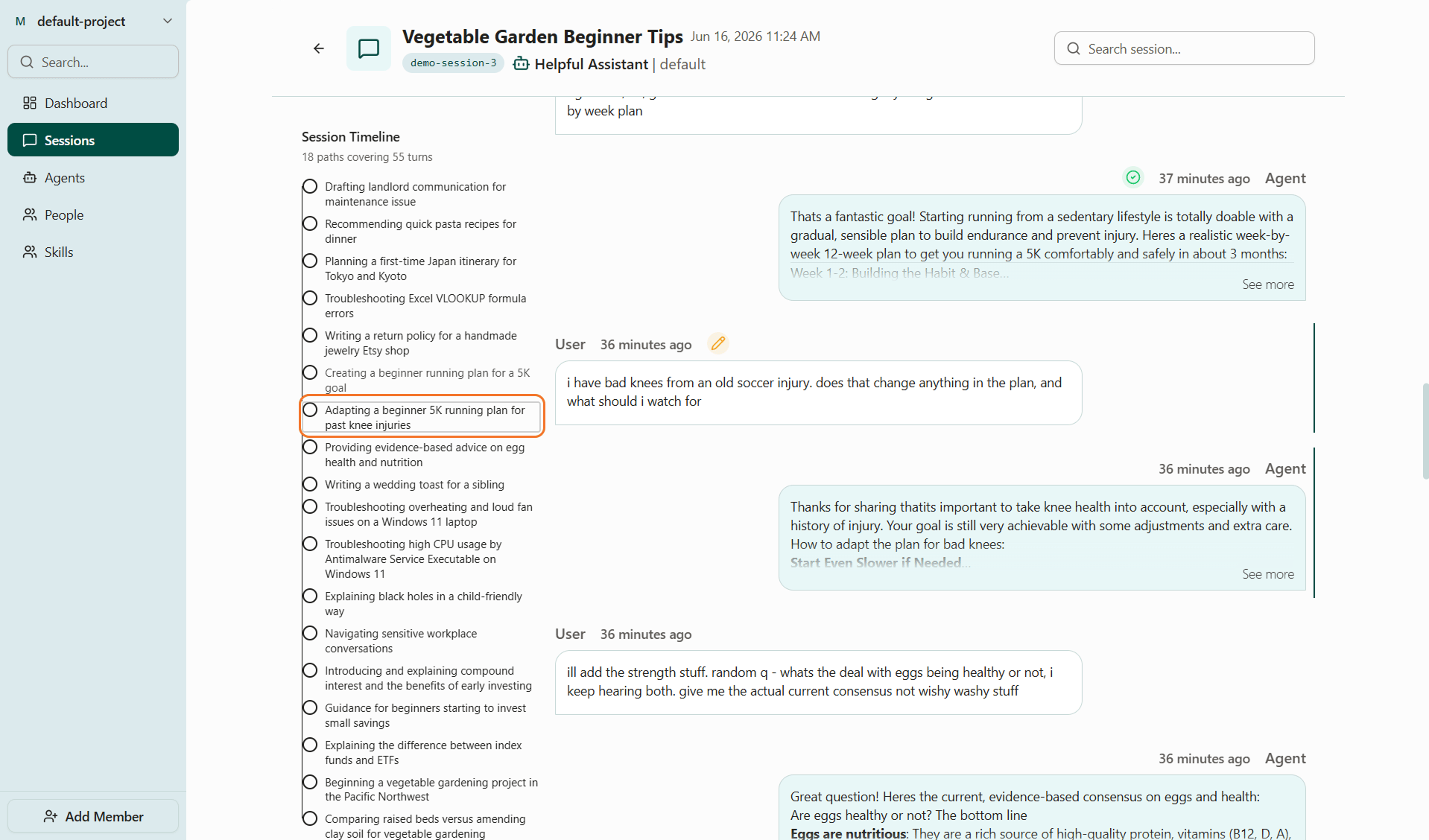
Open a session from the person's session history to view its Session Timeline. The timeline breaks a long session into session paths, providing an overview how the agent traversed the conversation.
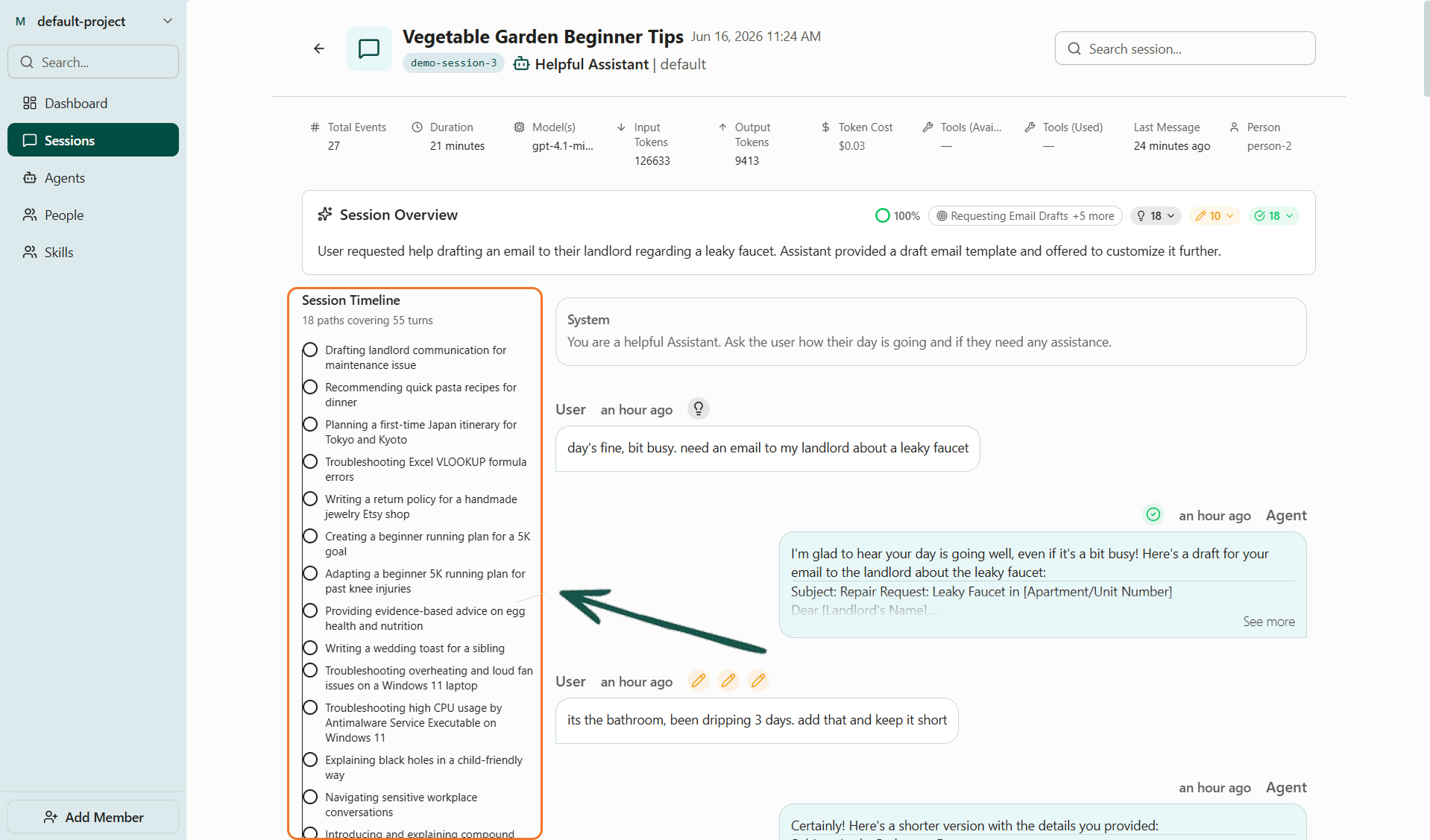 Hover over a session path to see how many turns it comprises.
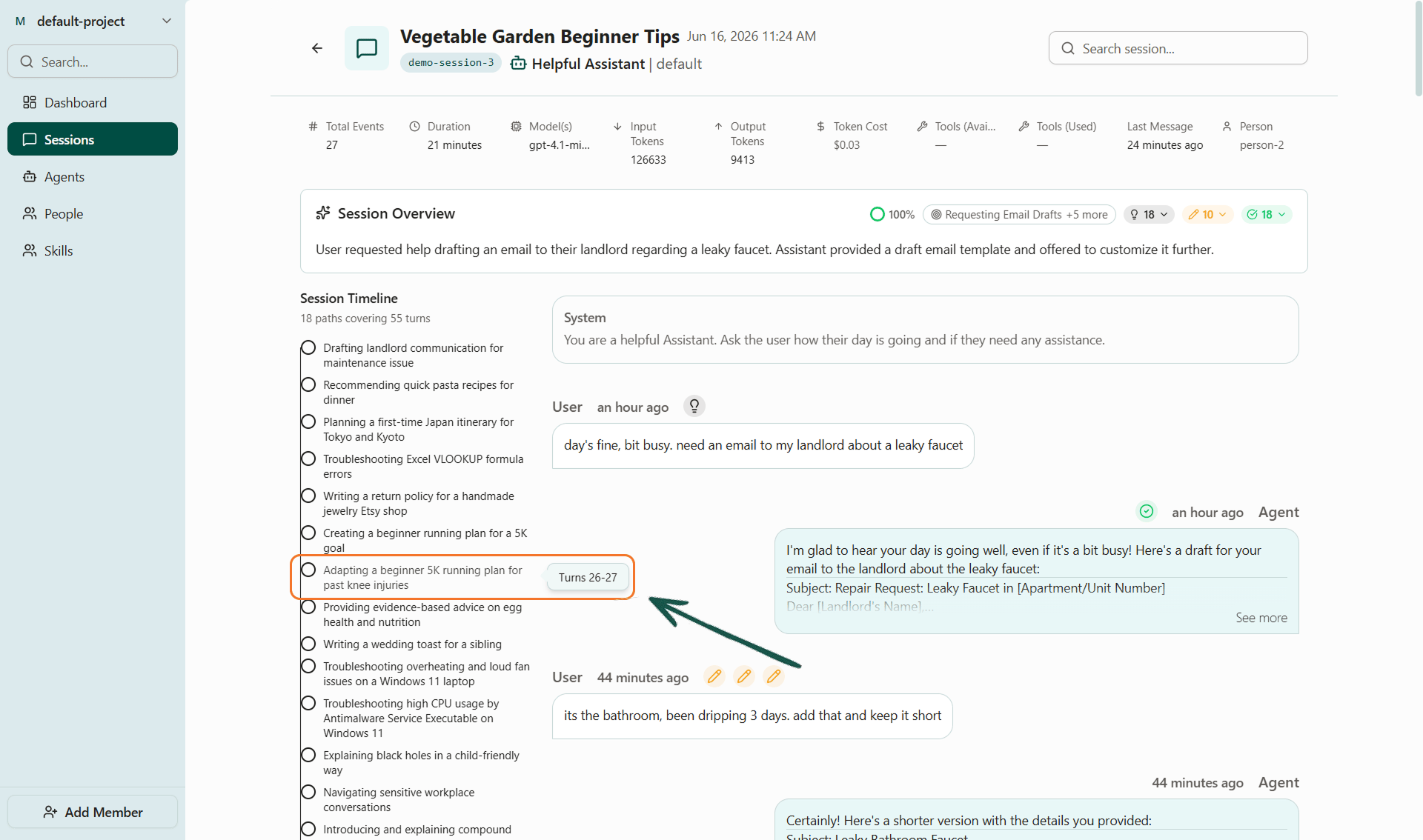 Click a session path to jump straight to that point in the conversation, without scrolling through every turn to find it.
 ### What Voker tracks about a person
Open a person from the People tab to see their session history. Three of the things it tracks describe the person across their sessions:
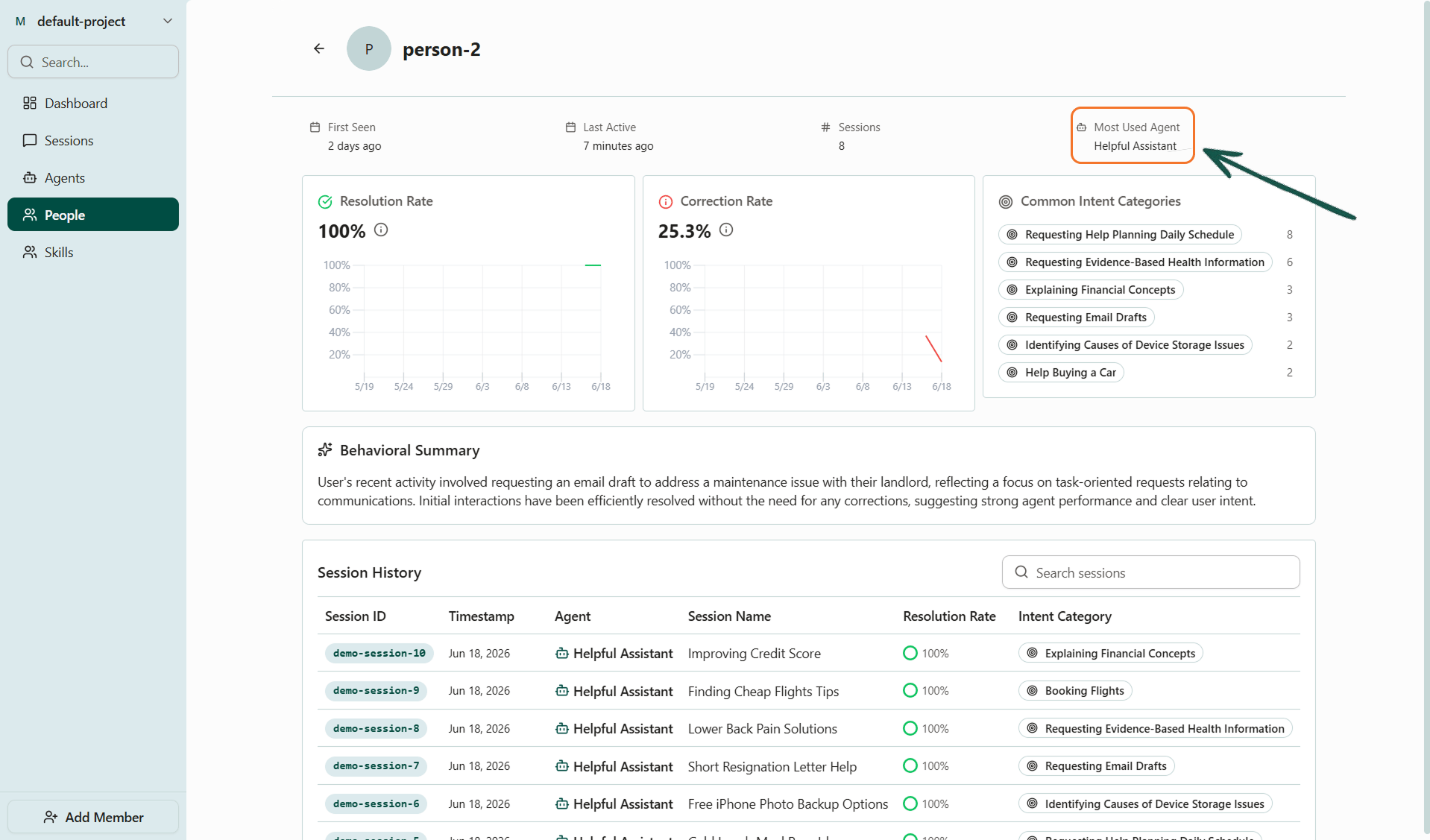
**Most used agent**: the agent this person uses most. Use this as the first place to look when they report a problem, since it's their primary agent.
### What Voker tracks about a person
Open a person from the People tab to see their session history. Three of the things it tracks describe the person across their sessions:
**Most used agent**: the agent this person uses most. Use this as the first place to look when they report a problem, since it's their primary agent.
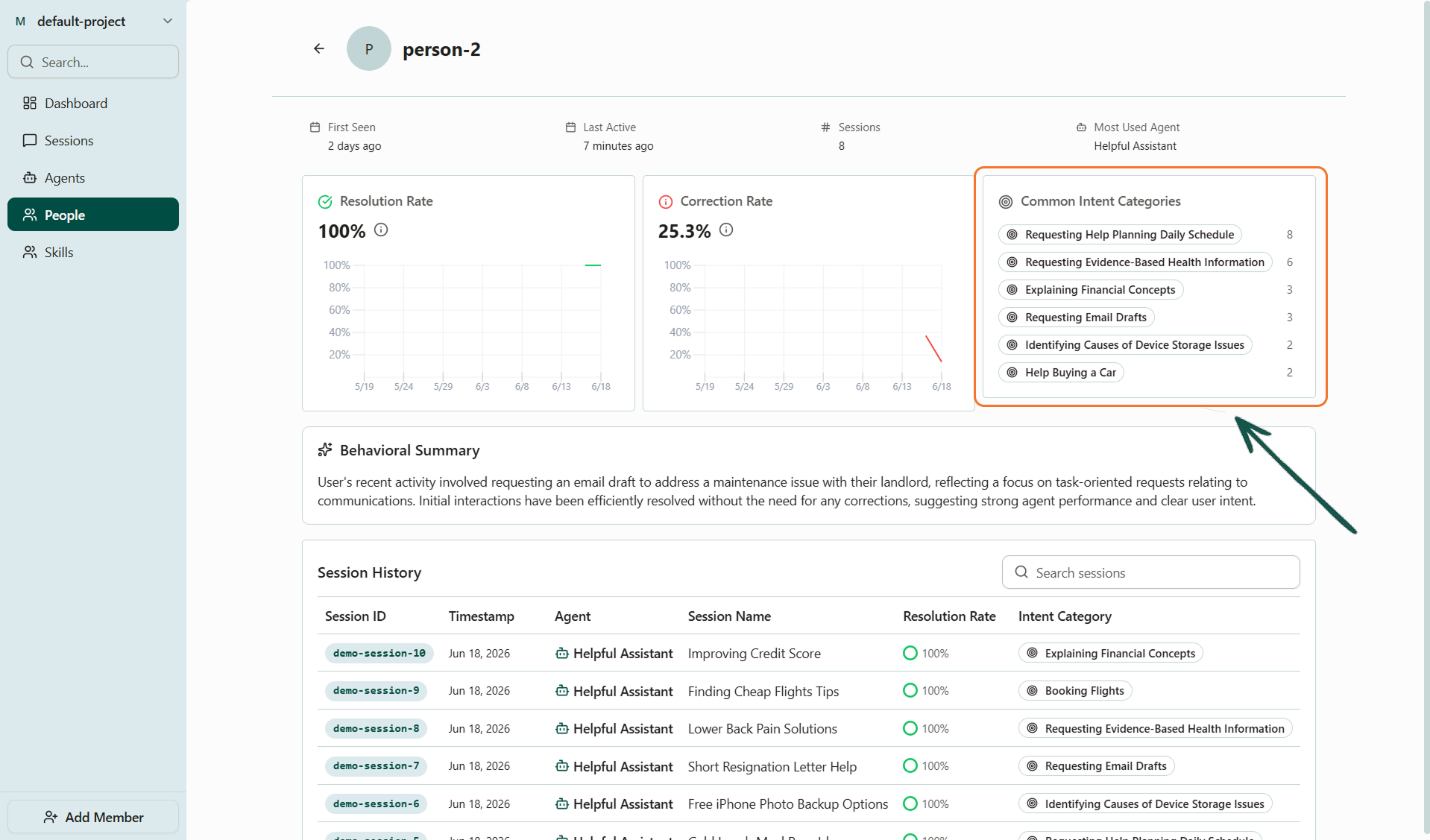
 **Common intent categories**: their recurring intents, grouped across sessions. Use this to find what a person relies on your agent for.
 **Behavioral summary**: an AI-generated read of how this person behaves and what they want, grounded in their real intents and sessions. Use this as a quick way to get up to speed when researching or troubleshooting their conversations.
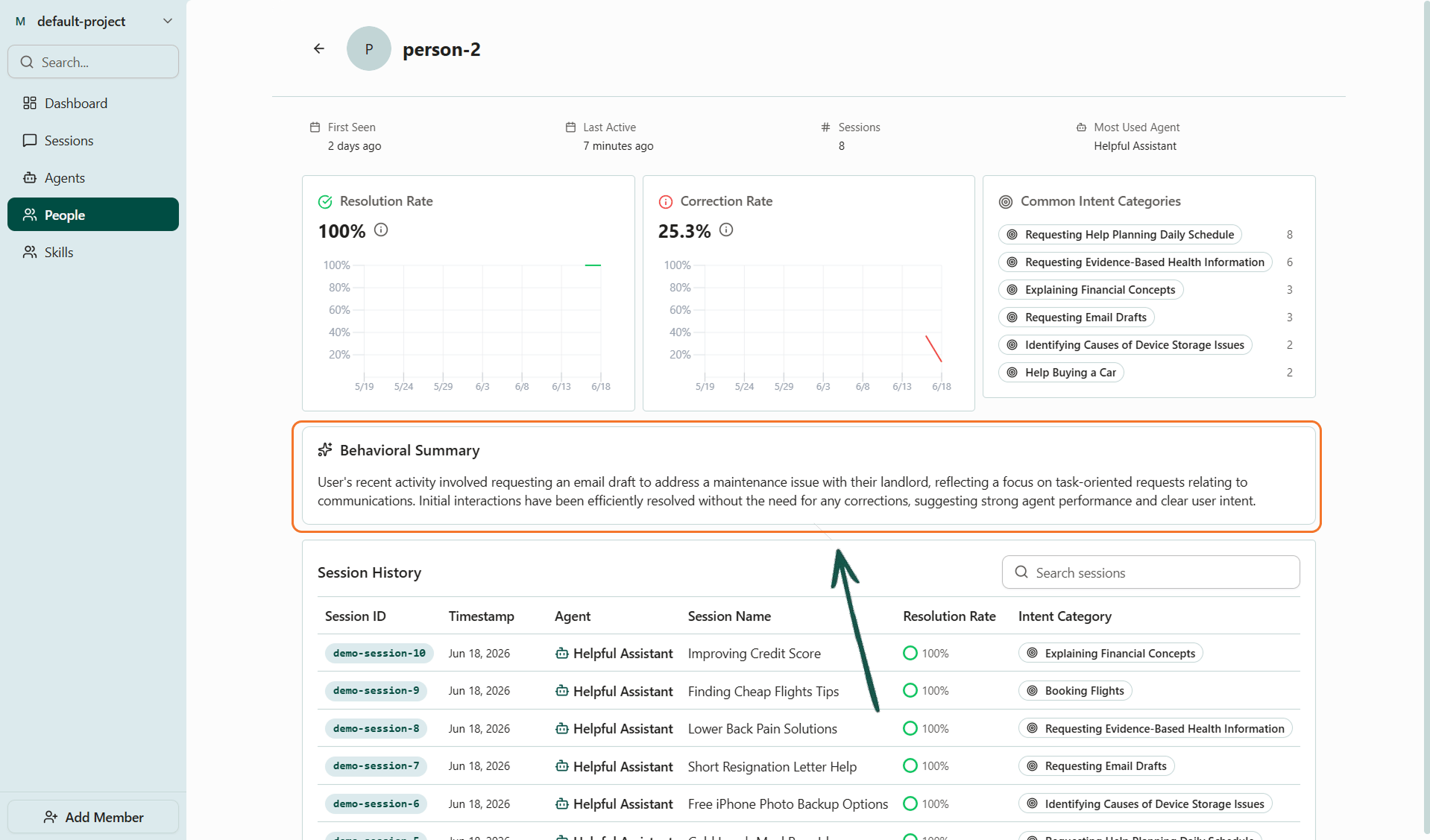 The person details page also shows agent performance metrics like resolution rate and correction rate, which are covered more in depth in [Agent Version Tracking](/cookbooks/agent-version-tracking).